Calendar & time-block
Calendar & time blocking on the app
Schedule tasks by day and week on iPhone/Android — More → Calendar. Premium feature; step-by-step time block guide on mobile.
What you’ll learn
- Open Calendar from the More tab on mobile
- View day and week calendars
- Assign time blocks to tasks
- Adjust time slots with press-and-drag
Before you start
| Platforms | iOS (TestFlight) · Android — primary guide. Web/desktop: footnote at end of section if different. |
| Install | iOS: TestFlight (board link). Android: APK / Play internal when available. |
| Plan | Premium — Calendar and time blocking |
| Prerequisites | Signed in; active Premium plan. |
This feature requires Premium. See comparison.
Steps
1. Open Calendar on mobile
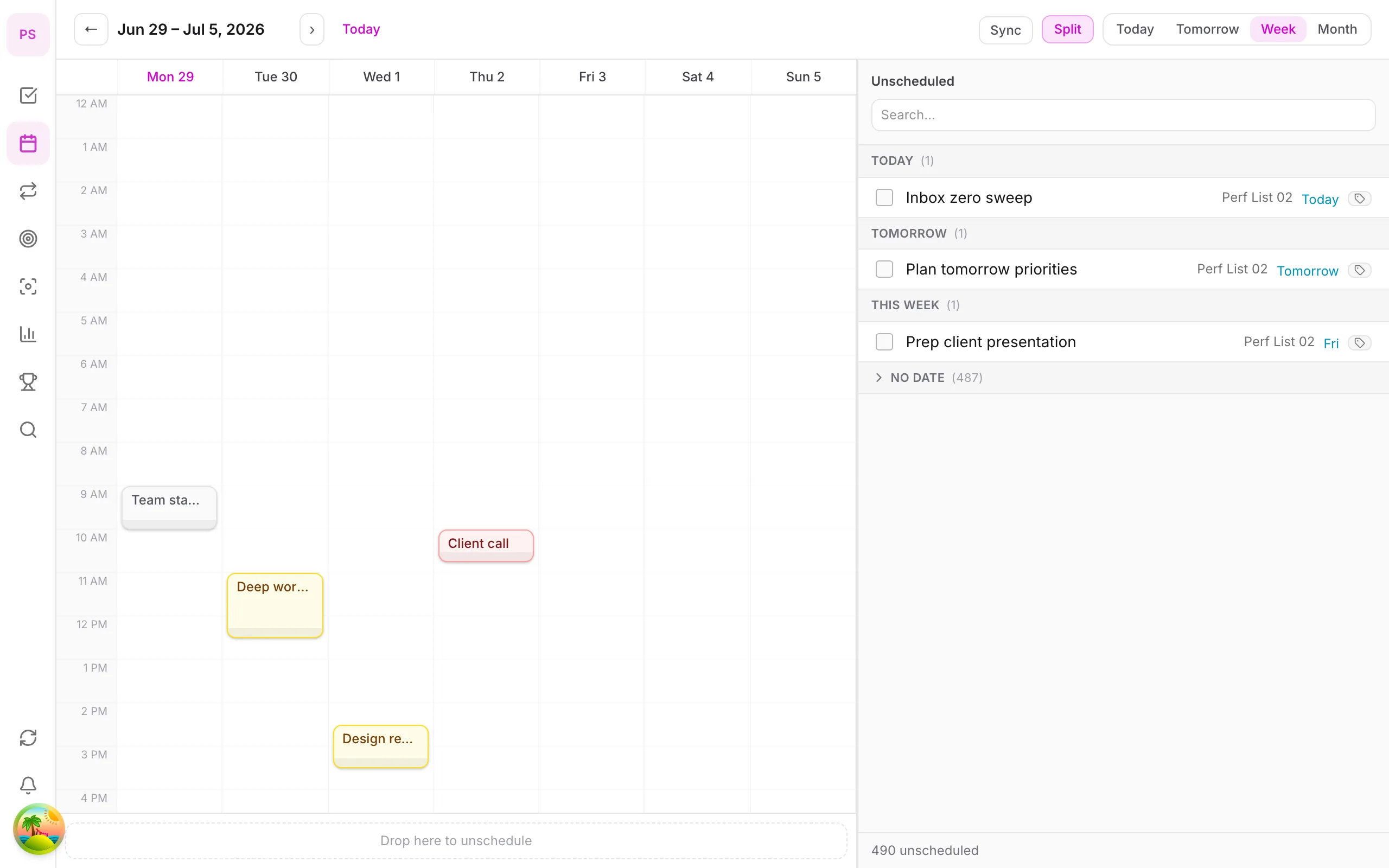
Tap More → Calendar. Select Day or Week view at the top.
2. View tasks with due dates
Tasks with assigned dates (from Home or Quick Add) appear on the calendar. Tap a task to open Task detail.
3. Create a time block
Tap an unscheduled task (or from the unscheduled panel) → pick a time slot on the calendar. DonDon creates a block with default duration — press and drag the block edge to change end time.
4. Move blocks
Press and hold a block and drag to another day/time. Drag the bottom edge to resize.
5. Plan your week
In Week view, allocate blocks for deep work, meetings, and buffers. Combine with Pomodoro during focus blocks.
Mobile tips
- Set due date in Home first — tasks appear on the calendar automatically
- Time blocks help you schedule daily work, not just record deadlines
- External calendar sync: see Sync & reminders
On web/desktop: Drag tasks from sidebar onto calendar with mouse; fuller Month view.
Related guides
Try DonDon on your phone
Install on iOS (TestFlight) or Android — your account syncs with web. Sign up free if you don’t have an account yet.
Frequently asked questions
- Is Calendar available on Free?
- No — Calendar (day/week/month) and time blocking require Premium. [See comparison](/en/pricing).
- How is time block different from due date?
- Due date is the deadline; time block is the hour slot you plan to work on the calendar — for daily planning.
- Does it sync with Google Calendar?
- Premium supports external calendar sync (up to 2 accounts). See [Sync & reminders](/en/guides/sync-reminders/).
Create a free account and start managing tasks today.
Smart task management — focus on what matters.
Create free account