Quick actions
Delete a task on the app
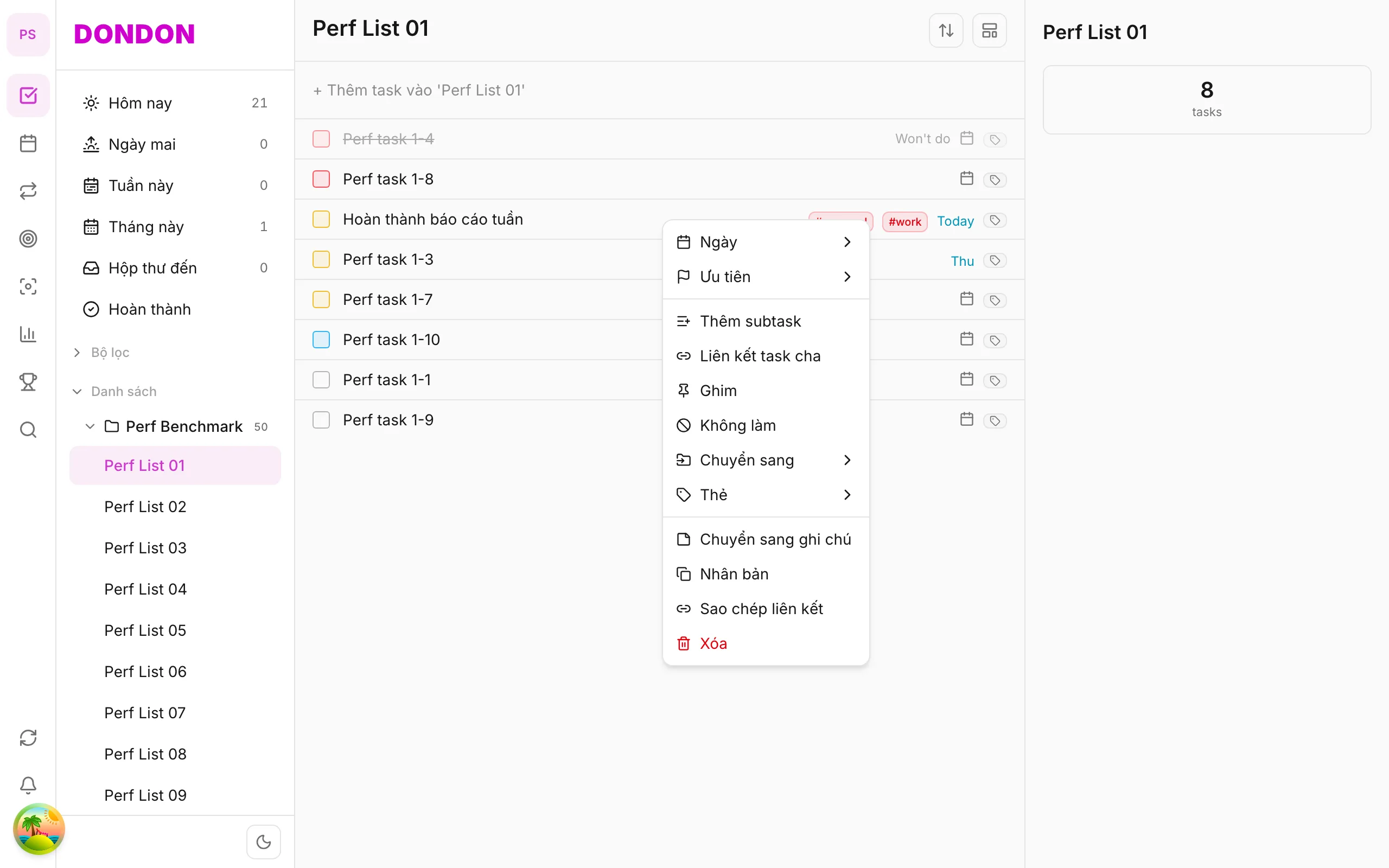
Permanently delete via long-press → Delete — red item at menu bottom on iPhone/Android.
Free
What you’ll learn
- Delete tasks with long-press
- Confirm before delete (if prompted)
- Tell apart Delete and Won’t do
Before you start
| Platforms | iOS (TestFlight) · Android — primary guide. |
| Plan | Free |
| Prerequisites | Task on Home tab. |
Steps
1. Long-press task
Long-press the task to delete.
2. Tap Delete
Tap Delete (usually red, bottom of menu).
3. Confirm
If a dialog appears, tap Delete to confirm. Task leaves the list.
Mobile tips
- Unsure? Use Won’t do instead of delete
- Swipe left (if available) may shortcut delete — per app version
On web/desktop: Right-click → Delete; Delete key when task selected.
Related guides
Try DonDon on your phone
Install on iOS (TestFlight) or Android. Sign up free if you don’t have an account yet.
Frequently asked questions
- Can I undo delete?
- Usually no — consider [Won't do](/en/guides/wont-do-task/) if you need history.
- Delete subtasks?
- Open parent → detail → delete each subtask, or delete parent (whole tree).
Create a free account and start managing tasks today.
Smart task management — focus on what matters.
Create free account