Quick actions
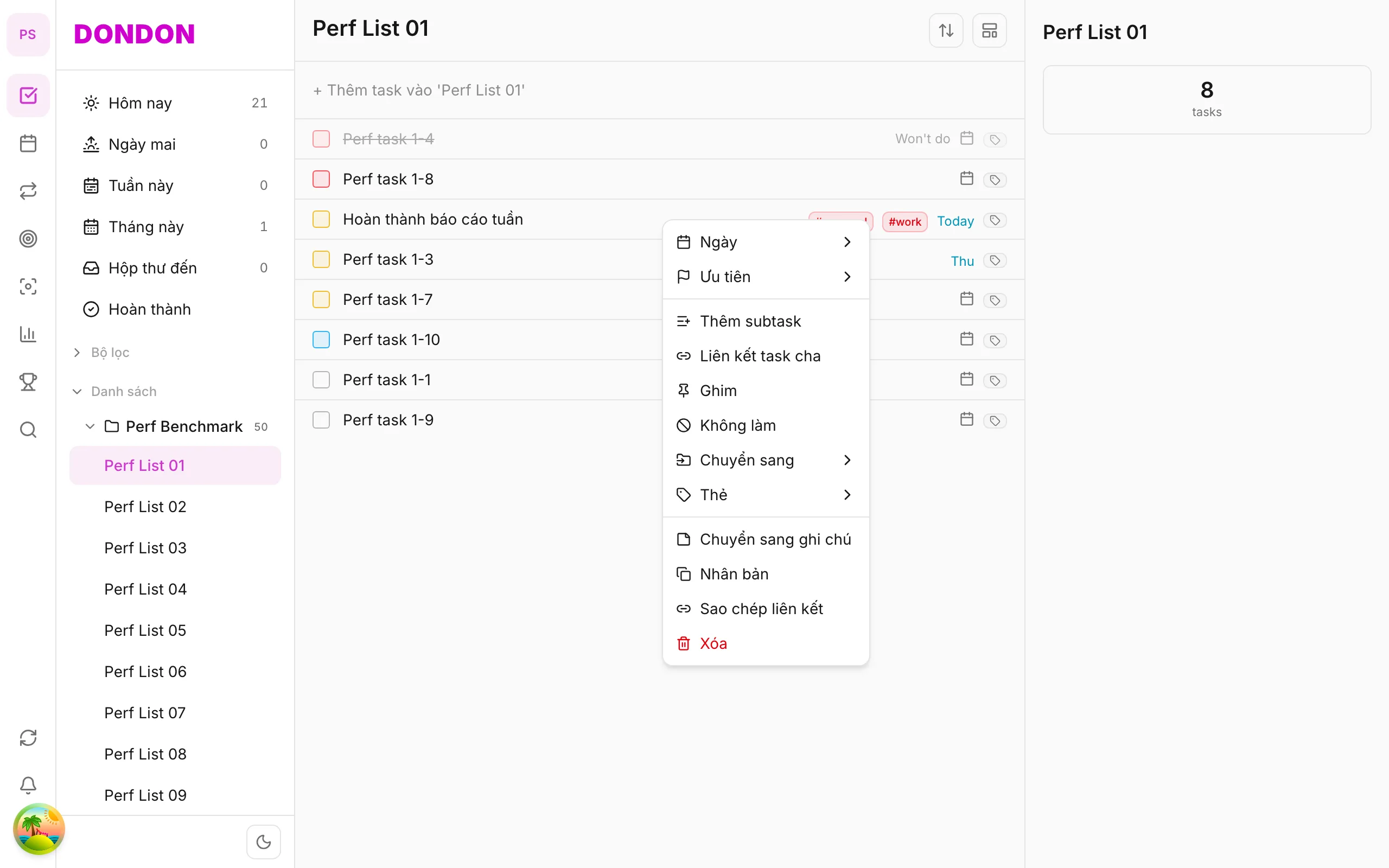
Task long-press menu — overview
Long-press tasks for due date, priority, pin, and quick actions — micro-guide hub on iPhone/Android.
Free
What you’ll learn
- Open menu with long-press on task row
- Action groups: date, priority, organize, workflow
- Links to detailed micro-guides
Before you start
| Platforms | iOS (TestFlight) · Android — primary guide. |
| Plan | Free — most items; some need Premium |
| Prerequisites | Home tab, any list. |
Steps
1. Open Home tab
Tap Home → pick a list (e.g. Inbox).
2. Long-press task
Hold the task row ~1 second. Menu shows Date, Priority, Pin, Move to, …
3. Tap items with arrows
Items like Date, Priority, Move to open a sheet or submenu — tap to choose (no hover).
4. One-tap actions
Single-level items — Pin, Duplicate, Won’t do, Delete — apply on tap.
Action groups & micro-guides
| Group | Actions | Detail guide |
|---|---|---|
| Date | Due date, reminder, repeat | Due date, Reminder, Repeat |
| Organize | Priority, pin, list, tag | Priority, Pin, Move list, Tags |
| Workflow | Duplicate, delete, won’t do | Duplicate, Delete, Won’t do |
On web/desktop: Right-click; hover submenus.
Related guides
Try DonDon on your phone
Install on iOS (TestFlight) or Android. Sign up free if you don’t have an account yet.
Frequently asked questions
- How is long-press different from tap?
- Tap opens Task detail; long-press opens quick action menu.
- I don't see Repeat?
- Repeat in Task detail or **Date** → **Pick date…** — Premium required.
Create a free account and start managing tasks today.
Smart task management — focus on what matters.
Create free account