Quick actions
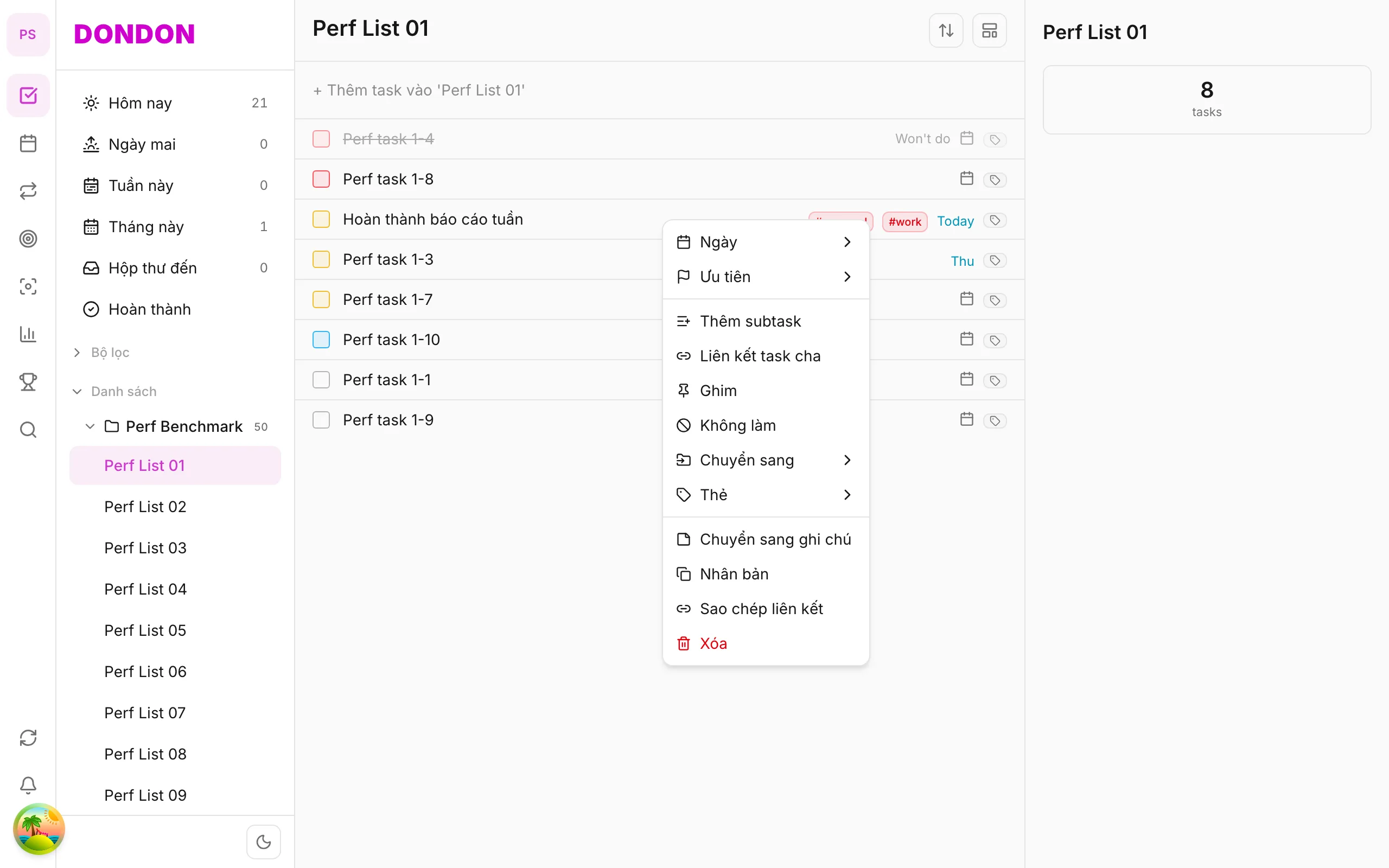
Move a task to another list on the app
Move tasks between Inbox and project lists via long-press → Move to — guide for iPhone/Android.
Free
What you’ll learn
- Move tasks to another list with long-press
- Pick destination from a sheet
- Triage Inbox → project lists
Before you start
| Platforms | iOS (TestFlight) · Android — primary guide. |
| Plan | Free |
| Prerequisites | At least 2 lists in workspace. |
Steps
1. Long-press task
Long-press the task to move.
2. Tap Move to
Tap Move to → list sheet appears.
3. Pick destination
Tap a list — e.g. Work, Personal. Task leaves the old list.
4. (Optional) From Task detail
Tap task → Task detail → change List if available.
Mobile tips
- Inbox = capture; move to lists when classified
- Free has list limits — see pricing to expand
On web/desktop: Right-click → Move to; Kanban drag between columns.
Related guides
Try DonDon on your phone
Install on iOS (TestFlight) or Android. Sign up free if you don’t have an account yet.
Frequently asked questions
- Does moving lists lose date/priority?
- No — task metadata stays when you change lists.
- Can I drag between lists on mobile?
- Not yet — use long-press → **Move to** or Task detail.
Create a free account and start managing tasks today.
Smart task management — focus on what matters.
Create free account