Quick actions
Quick-add tasks on mobile — natural language
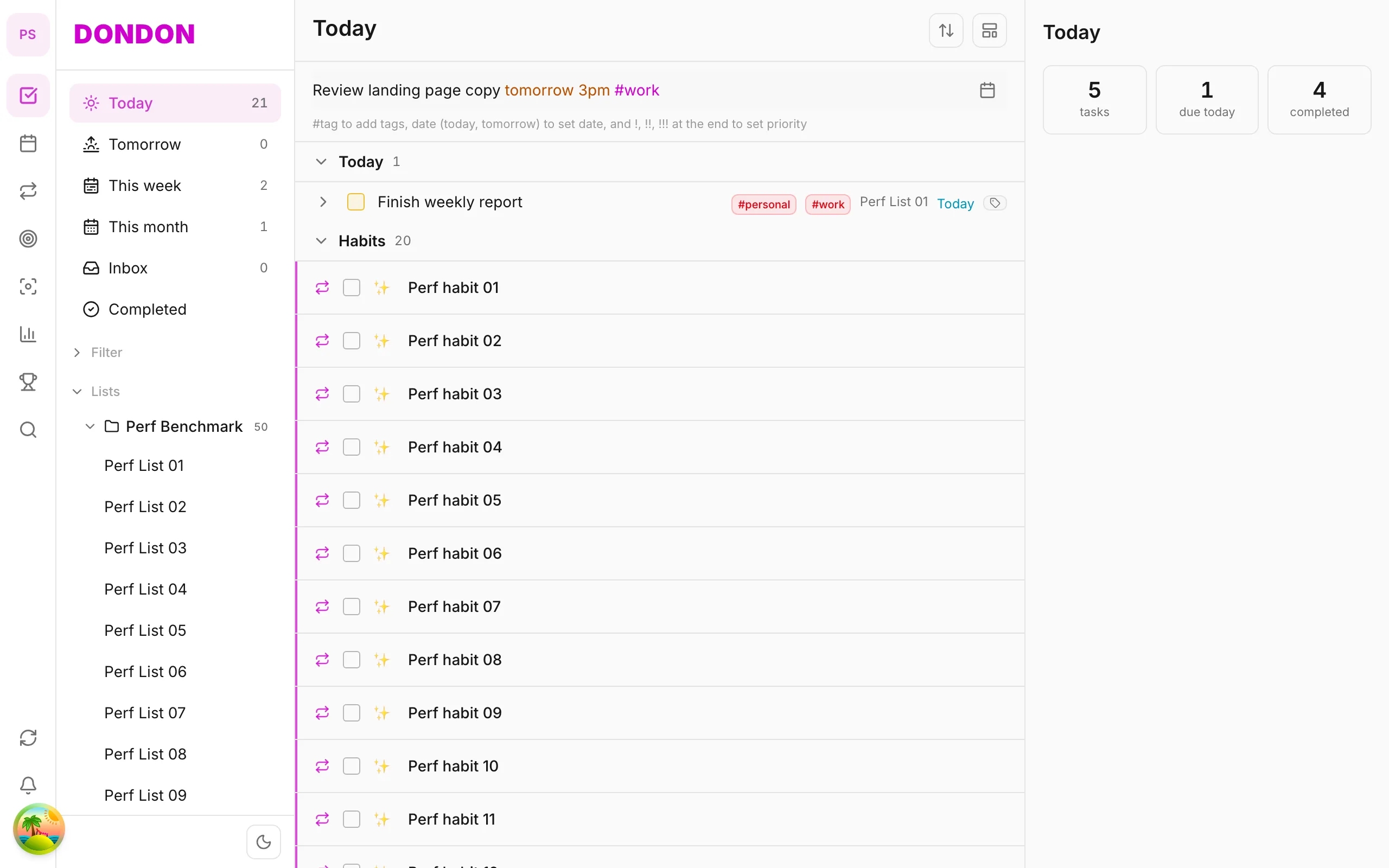
Type "call client Friday 9am" in the Quick Add pill — DonDon parses date, time, and priority. NLP quick-add guide for iOS/Android.
What you’ll learn
- Use the Quick Add bar (pill) on the Home tab
- Type natural sentences with date, time, priority
- Use tags (#) in one line
- Review parsed results before saving
Before you start
| Platforms | iOS (TestFlight) · Android — primary guide. Web/desktop: footnote at end of section if different. |
| Install | iOS: TestFlight (board link). Android: APK / Play internal when available. |
| Plan | Free — unlimited NLP quick-add |
| Prerequisites | Signed in; on the Home tab. |
Steps
1. Open Quick Add on mobile
On the Home tab, tap the Quick Add bar (pill at the bottom). The keyboard opens — type directly without opening a separate screen.
2. Type naturally
Examples:
Team sync 3pm tomorrow #workCall client Friday 9am !!Buy milk today
DonDon splits title, time, tag, and priority (!! = high).
3. Check the preview
Before saving, the app shows the parsed task — date, tag, priority. Adjust in the preview if needed, then tap Add.
4. Task lands in Inbox or target list
By default, tasks go to Inbox. Organize later in Tasks & lists or long-press → Move to another list.
Mobile tips
- Relative dates: tomorrow, next week, 7/15
!!or!!!for quick priority boost- Quick Add pill is always available on Home — no menu needed
On web/desktop: ⌘⇧Space opens Quick Add popup; + button on web.
Related guides
Try DonDon on your phone
Install on iOS (TestFlight) or Android — your account syncs with web. Sign up free if you don’t have an account yet.
Frequently asked questions
- Is Quick Add available on Free?
- Yes — NLP quick-add works on both Free and Premium.
- Does DonDon understand Vietnamese?
- Yes — type in Vietnamese or English; relative dates like "tomorrow" or "Friday" are recognized.
- How do I add a tag or list when quick-adding on mobile?
- Use #tag in your text. Default list is Inbox — change list later in Task detail or long-press → Move to.
Create a free account and start managing tasks today.
Smart task management — focus on what matters.
Create free account