Quick actions
Set task priority on the app
Assign P1–P4 or clear priority via long-press or Priority sheet — prioritize work on iPhone/Android.
Free
What you’ll learn
- Set priority via long-press or Task detail
- Pick Low / Medium / High (or P1–P4 per app)
- Spot priority badges on task rows
Before you start
| Platforms | iOS (TestFlight) · Android — primary guide. |
| Plan | Free — basic priority |
| Prerequisites | Task on Home tab. |
Steps
1. Open Priority
Long-press task → Priority.
Or tap task → Task detail → Priority.
2. Pick level
Sheet shows: Low, Medium, High (or P1–P4). Tap to apply.
3. Confirm
Priority icon or color appears on the row. Lists may sort by priority.
4. Clear priority
Choose None in the same sheet.
Mobile tips
- Quick Add:
!!= high,!!!= very high - See Task context menu for other actions
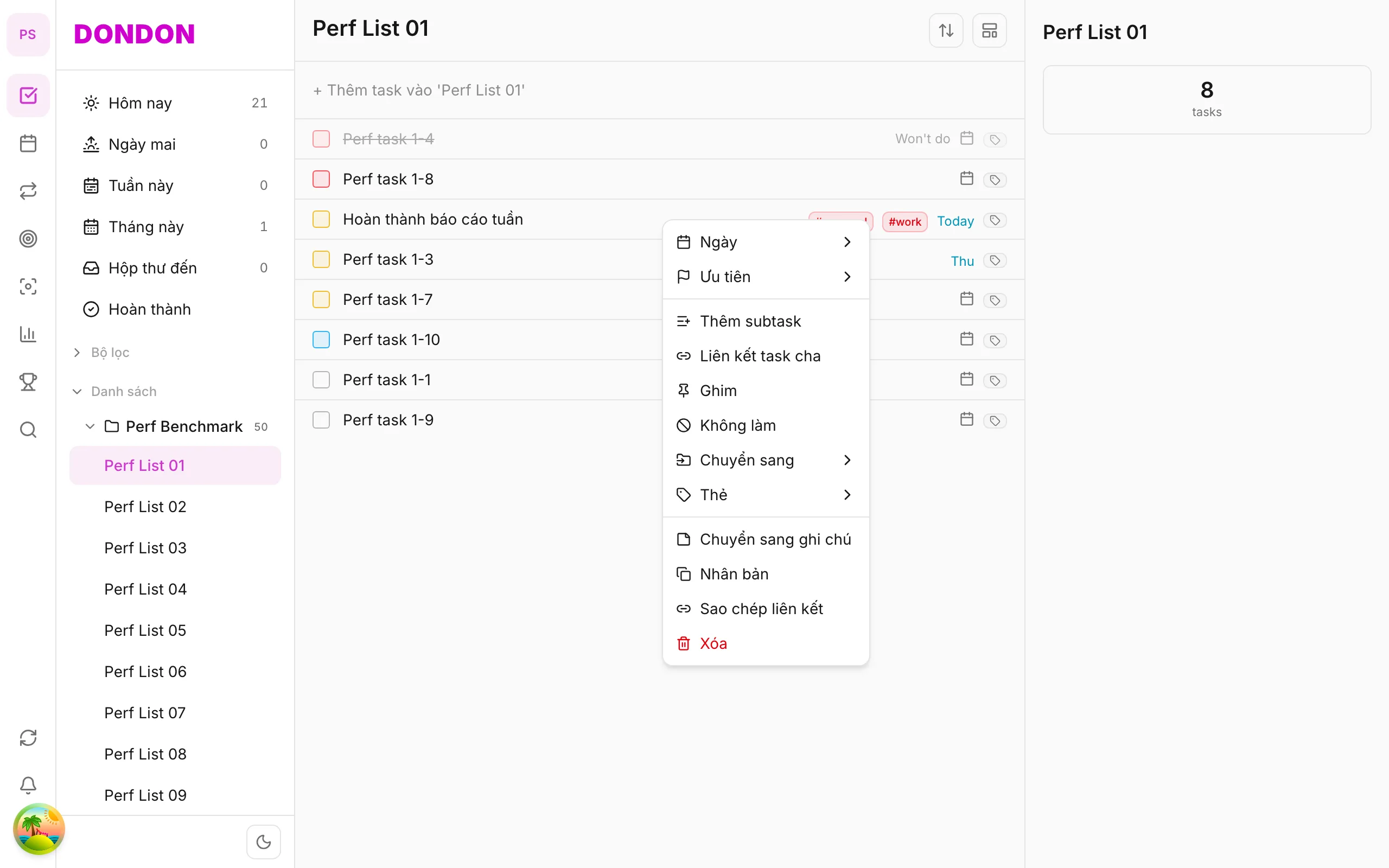
On web/desktop: Right-click → Priority submenu with hover.
Related guides
Try DonDon on your phone
Install on iOS (TestFlight) or Android. Sign up free if you don’t have an account yet.
Frequently asked questions
- Is priority on Free?
- Yes — basic priority is on Free.
- Quick priority in Quick Add?
- Type !! or !!! in Quick Add to boost priority when creating a task.
- How do I clear priority?
- Long-press → **Priority** → **None**, or Task detail → Priority sheet.
Create a free account and start managing tasks today.
Smart task management — focus on what matters.
Create free account