Sync & reminders
Workspace settings on the app
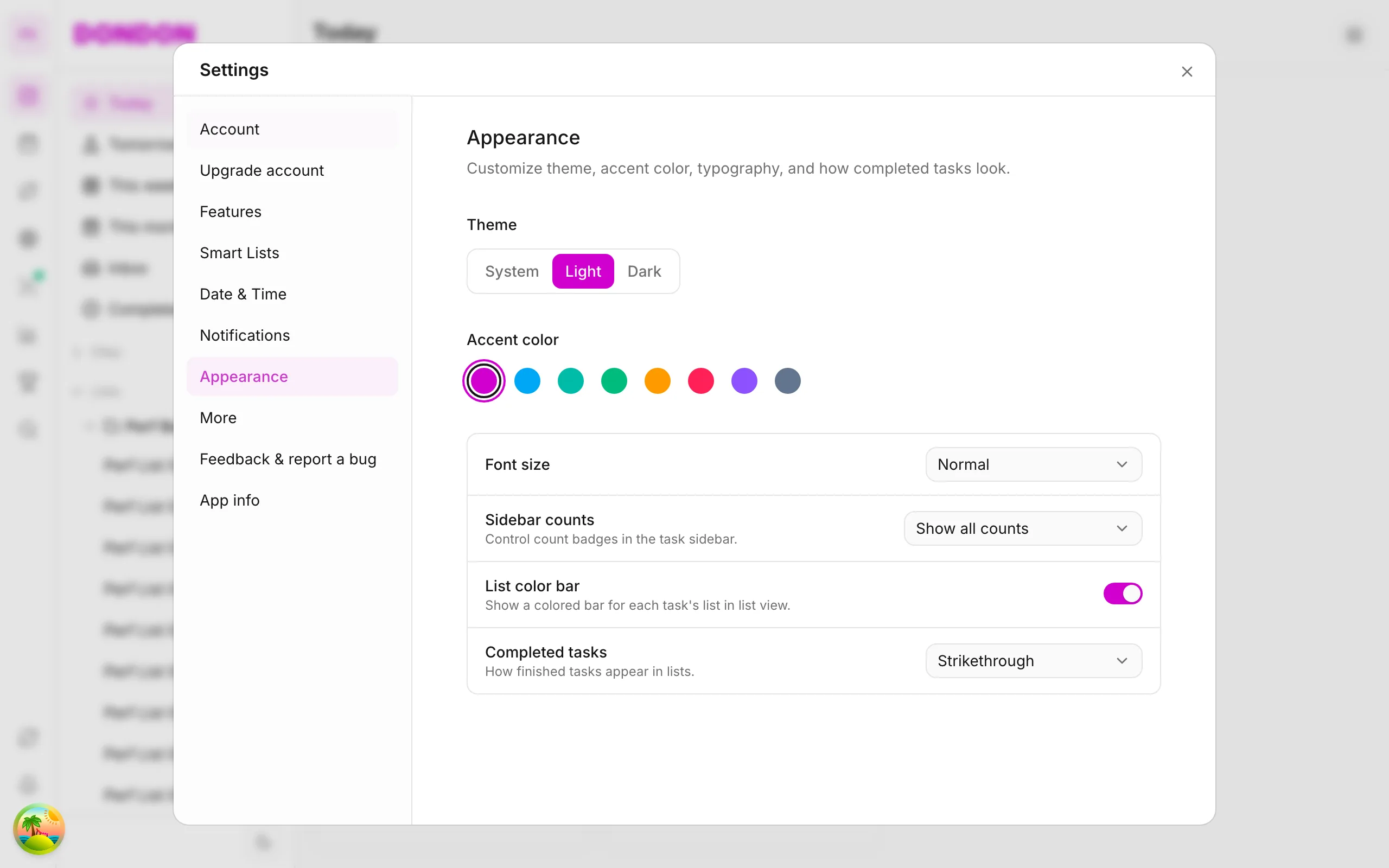
Rename workspace, language, and sync options via Settings — guide for iPhone/Android.
Free & Premium
What you’ll learn
- Open Settings on mobile
- Rename workspace and UI language
- Enable notifications and calendar sync (Premium)
Before you start
| Platforms | iOS (TestFlight) · Android — primary guide. |
| Plan | Mixed — basics on Free; customization Premium |
| Prerequisites | Signed in. |
Steps
1. Open Settings
Tap avatar top of Home or More → Settings.
2. Workspace
Edit Workspace name, workspace avatar (if available).
3. Language & notifications
- Language — vi / en
- Notifications — enable task reminders (needs iOS/Android permission)
4. Calendar sync (Premium)
Calendar sync — connect Google (up to 2 accounts). See Sync.
Mobile tips
- Sign out / switch account in Settings — don’t share devices
- Pet companion (Premium): see Pet
On web/desktop: Settings via icon rail or profile menu.
Related guides
Try DonDon on your phone
Install on iOS (TestFlight) or Android. Sign up free if you don’t have an account yet.
Frequently asked questions
- Where is Settings on mobile?
- Top avatar or **More** → **Settings**.
- Switch vi/en language?
- Settings → Language — pick vi or en.
- Advanced customization needs Premium?
- Some Settings customization needs Premium — see [pricing](/en/pricing).
Create a free account and start managing tasks today.
Smart task management — focus on what matters.
Create free account