Quick actions
Convert a task to a note on the app
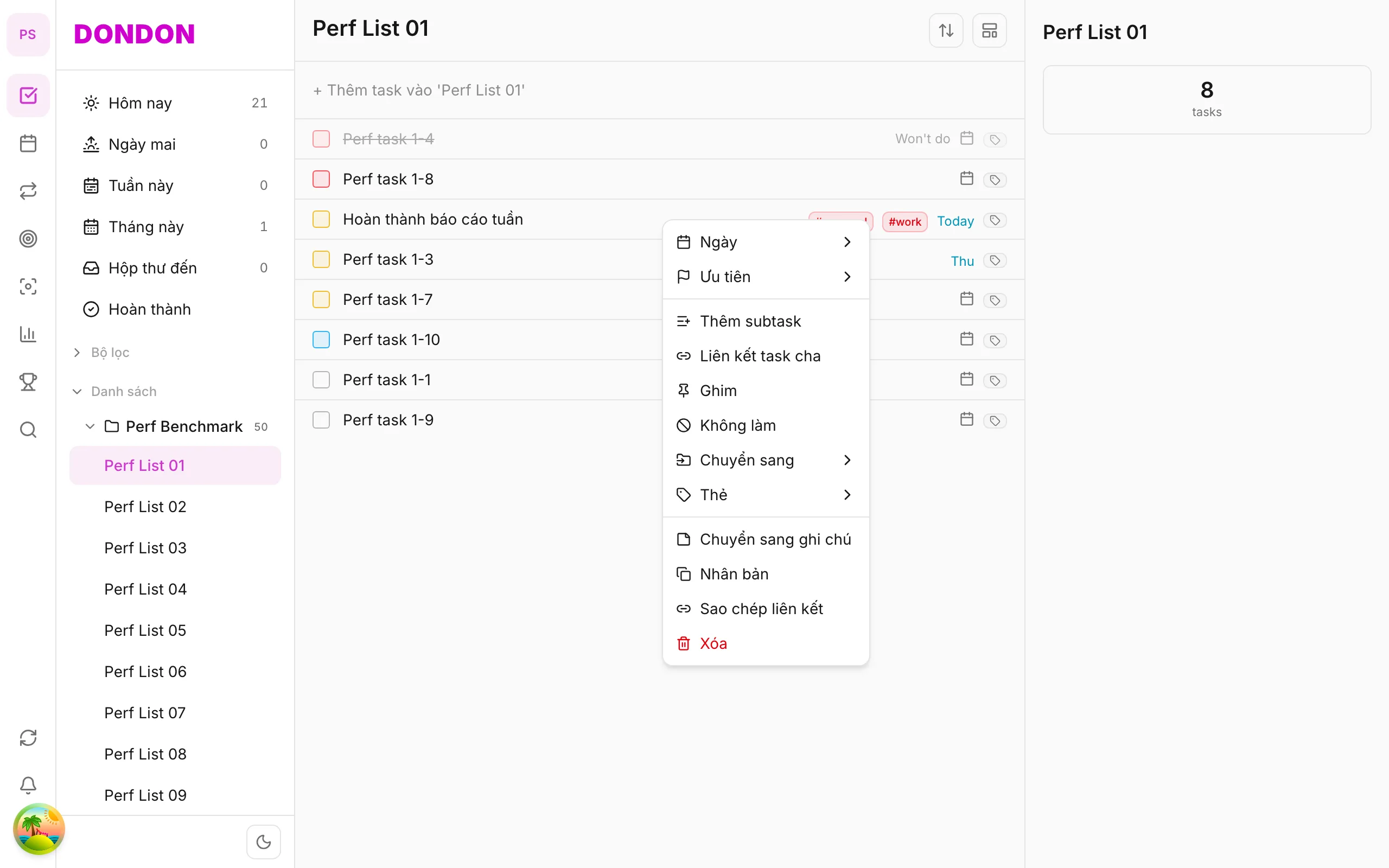
Turn a task into a note via long-press → Convert to note — on iPhone/Android.
Free
What you’ll learn
- Convert tasks to notes with long-press
- Find the note after conversion
- When to use instead of deleting
Before you start
| Platforms | iOS (TestFlight) · Android — primary guide. |
| Plan | Free |
| Prerequisites | Task on Home tab; Notes module in app. |
Steps
1. Long-press task
Long-press the task to convert.
2. Tap Convert to note
Tap Convert to note.
3. Open Notes
Go to More → Notes (or equivalent) — edit title and body.
4. Confirm
Task no longer in list; content lives in Notes.
Mobile tips
- Use when task is reference only, not actionable
- See pillar Notes for full workflow
On web/desktop: Right-click → Convert to note; Notes on icon rail.
Related guides
Try DonDon on your phone
Install on iOS (TestFlight) or Android. Sign up free if you don’t have an account yet.
Frequently asked questions
- Does the task disappear after convert?
- Yes — content moves to Notes; the original task is gone from the list.
- Where is Notes on mobile?
- Check **More** or Notes entry in app — UI path may vary by version.
Create a free account and start managing tasks today.
Smart task management — focus on what matters.
Create free account