Quick actions
Bulk complete tasks (web/desktop)
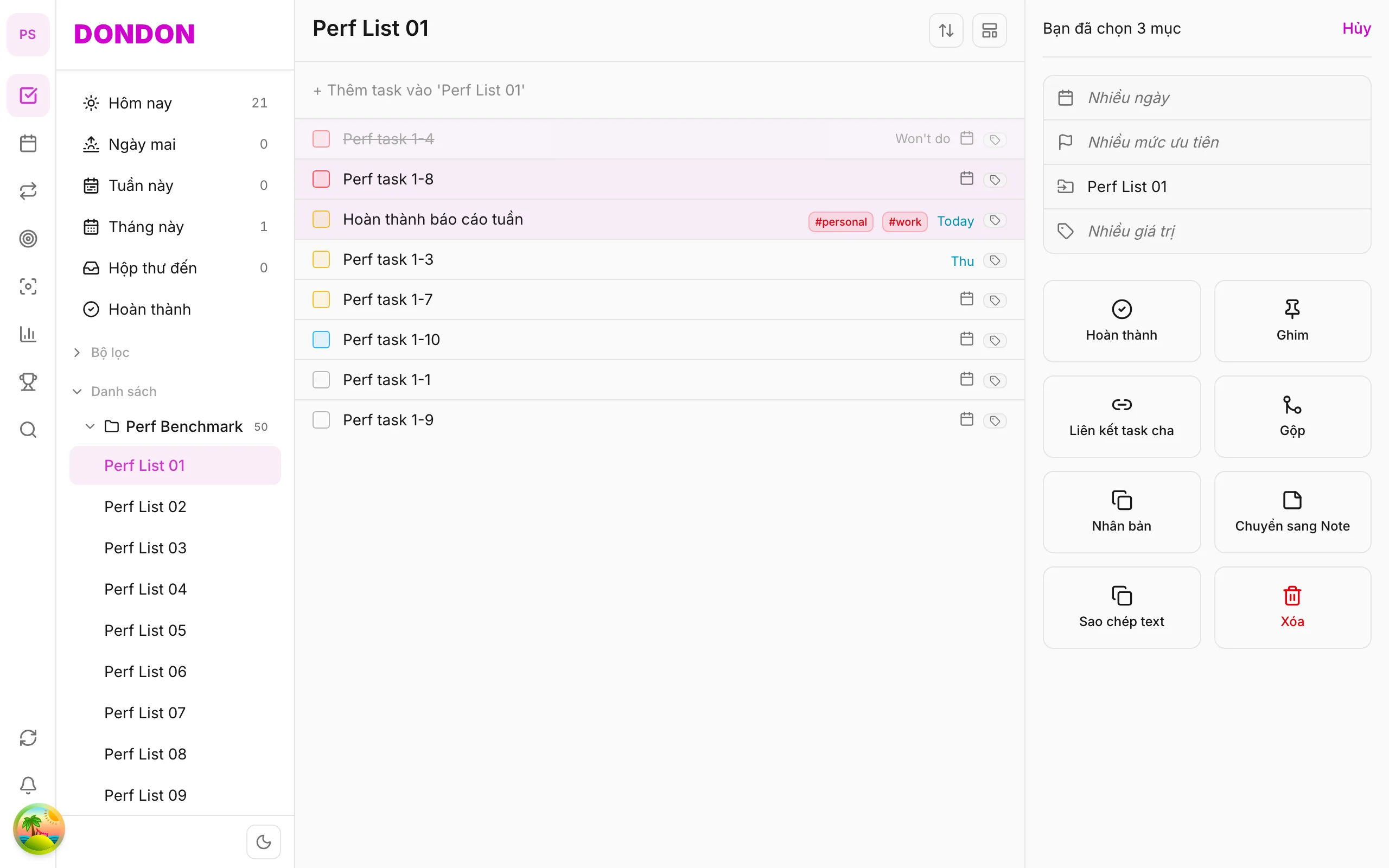
Mark multiple tasks Done from bulk pane — not on mobile; swipe right per task on the app.
On mobile: Swipe right on task row or tap checkbox to Done each task.
What you'll learn (web/desktop)
- Select multiple open tasks
- Use Complete in bulk pane
- See achievements update
Before you start
| Platforms | Web · Desktop |
| Plan | Free |
Steps (web/desktop)
1. Select tasks
⌘/Ctrl + click tasks to close.
2. Open bulk pane
Header shows correct selection count.
3. Tap Complete
All selected tasks mark done.
4. Undo
Use undo toast if available; else uncheck in Completed.
Mobile alternative
- Swipe right / checkbox — see Tasks & lists
- Achievements update per Done
When bulk complete helps
Bulk complete is for cleaning up. After a busy day or a weekly review you may find a dozen finished tasks that you never ticked off. Selecting them together takes seconds instead of a dozen separate taps, and it keeps your completion statistics honest.
A worked example
At the end of the week, open your list, ⌘/Ctrl + click every task you finished, check that the header shows the right count, then choose Complete. All selected tasks move to Completed at once, and your achievements and streak update as each one counts as done.
Tips
- Use it as part of a weekly review: complete, then bulk edit what is left.
- Check the selection count first, because bulk actions apply to every selected row.
- If you complete the wrong tasks, use the undo toast when it appears, or uncheck them in Completed.
Common mistakes
- Using shift-click on a long list and catching extra rows. Look at the count before you confirm.
- Looking for it on mobile. It is not available there yet. Swipe right on a task or tap its checkbox to finish tasks one by one.
Quick checklist
- Select the finished tasks.
- Confirm the count.
- Choose Complete.
- Undo straight away if the selection was wrong.
Bulk complete or one at a time?
Both do the same thing to each task, so choose by situation:
| Situation | Better choice |
|---|---|
| You just finished one thing | Tick it off on its own |
| You have a backlog of finished tasks to tidy up | Bulk complete |
| You are not sure which tasks are really done | Review them one at a time first |
| You are on your phone | Swipe right or tap the checkbox |
Bulk complete is for tasks you already know are done. If you have any doubt about a row, leave it out of the selection and handle it separately.
Why it matters for your statistics
Each completed task counts toward your achievements and streak and your analytics. If finished work stays unticked for days, your numbers look worse than your real progress. A quick bulk complete at the end of the day or week keeps them accurate. The reverse also holds: only complete tasks that are genuinely done, so the numbers stay meaningful.
Step-by-step: a clean weekly wrap-up
- Open the list you use most.
- ⌘/Ctrl + click each task you finished this week.
- Look at the header and check that the count matches what you expect.
- Choose Complete.
- Open Completed and scan the result.
- If something does not belong, uncheck it there.
- Use bulk edit on the tasks that remain, for example to move them to next week.
If something looks wrong
- The count is higher than expected. You probably selected extra rows. Clear the selection and start again before you confirm.
- A task was completed by mistake. Use the undo toast if it is still showing. Otherwise open Completed and uncheck the task.
- You cannot find the bulk option. It is available on web and desktop. On the phone, complete tasks with a swipe or the checkbox.
Frequently asked questions
Does bulk complete delete anything? No. Tasks are marked done and move to Completed, where you can still see them.
Does it count toward my streak? Yes, each completed task counts as done, the same as ticking it off individually.
Related guides
Try DonDon on your phone
Install the app — quick Done with swipe. Sign up free.
Frequently asked questions
- Is bulk complete on mobile?
- **Not yet**. On app: **swipe right** or tap checkbox per task.
- Does complete count for streak?
- Yes — each done task contributes to completion stats.
- Selected wrong tasks?
- On web: undo toast or uncheck in Completed.
Create a free account and start managing tasks today.
Smart task management — focus on what matters.
Create free account