Tasks & lists
Tasks & lists on the DonDon app
Create lists, organize tasks, and set priorities on iPhone/Android — free task manager app with Home tab and long-press actions.
What you'll learn
- Open the Home tab and switch between Today, Upcoming, Inbox
- Create and rename lists
- Add, edit, and complete tasks with tap and swipe
- Set priority and due date via long-press or Task detail
Before you start
| Platforms | iOS (TestFlight) · Android — primary guide. Web/desktop: footnote at end of section if different. |
| Install | iOS: TestFlight (board link). Android: APK / Play internal when available. |
| Plan | Free — tasks, lists, and basic priority |
| Prerequisites | Signed in to the app; default workspace has an Inbox list. |
Steps
1. Open the Home tab
Tap Home on the bottom tab bar. You see Today, Upcoming, and the Inbox list — where new tasks are collected.
2. Create a new list
Tap the Organize menu (top corner) → + List, name it — e.g. Work, Personal. Each list is its own space; tasks can move between lists.
3. Add a task to a list
In the selected list, use the Quick Add bar (pill at the bottom) or tap + in the list. Type a title, tap Add to save. See also Quick-add NLP.
4. Set priority and due date
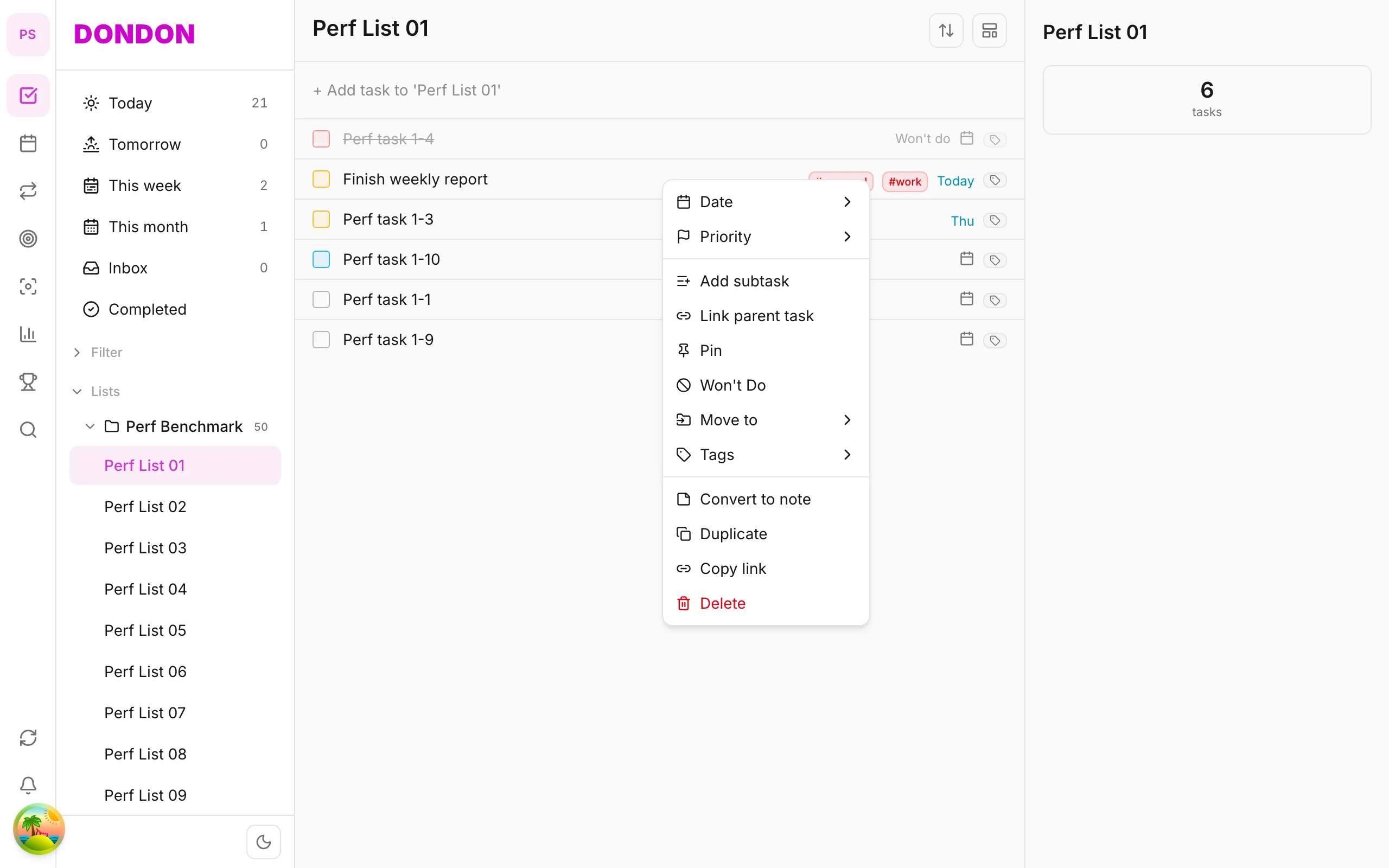
Long-press the task → Priority (Low / Medium / High) or Due date. Or tap the task → Task detail → Priority / Due date sheet. Tasks with a due date show a date badge on the row.
5. Complete and filter
Tap the checkbox or swipe right to mark done. Tap Today / Upcoming sections at the top of Home to view tasks by time.
Mobile tips
- Long-press a task: full context menu — see Task context menu
- Swipe right: quick Done
- Smart lists / advanced filters require Premium — see pricing comparison
On web/desktop: Kanban board view; bulk edit multiple tasks; fuller smart list filters than mobile.
How to structure your lists
Lists are the main way to keep work organised. A simple setup is enough for most people:
- Inbox: the landing place for everything new.
- Work: professional tasks.
- Personal: home, health and errands.
- One list per larger project, if you have one.
The Free plan limits the number of lists, so a small set of broad lists works well. Use tags for finer categories such as #calls.
A simple daily flow
- Morning: open Today and choose the three tasks that matter most.
- During the day: capture new items with quick add; they land in Inbox.
- Evening: process Inbox. Move tasks to lists, set dates and delete what you will not do.
A worked example
You start the day with a Work list of twelve tasks. In Today, only four have dates. You finish three by swiping right, move one to tomorrow and capture two new ideas in Inbox. At 6 pm you spend five minutes sorting Inbox, and tomorrow's plan is ready.
Tips
- Keep Inbox near empty; a pile there is a hidden to-do list.
- Rename lists when their purpose changes.
- Use priority and due dates rather than list order to show importance.
Common mistakes
- Creating a list for every tiny project.
- Giving every task a date, which makes Today meaningless.
Related guides
Try DonDon on your phone
Install on iOS (TestFlight) or Android — your account syncs with web. Sign up free if you don't have an account yet.
Frequently asked questions
- How many lists are on the Free plan?
- Free has a list limit — enough to get started personally. Upgrade to Premium to expand.
- Are subtasks available on Free?
- Subtasks are Premium. On Free, split work into separate tasks instead.
- How do I move a task to another list on mobile?
- Long-press the task → **Move to** → pick the destination list. Or open Task detail → change list.
Create a free account and start managing tasks today.
Smart task management — focus on what matters.
Create free account