Quick actions
Bulk edit tasks (web/desktop)
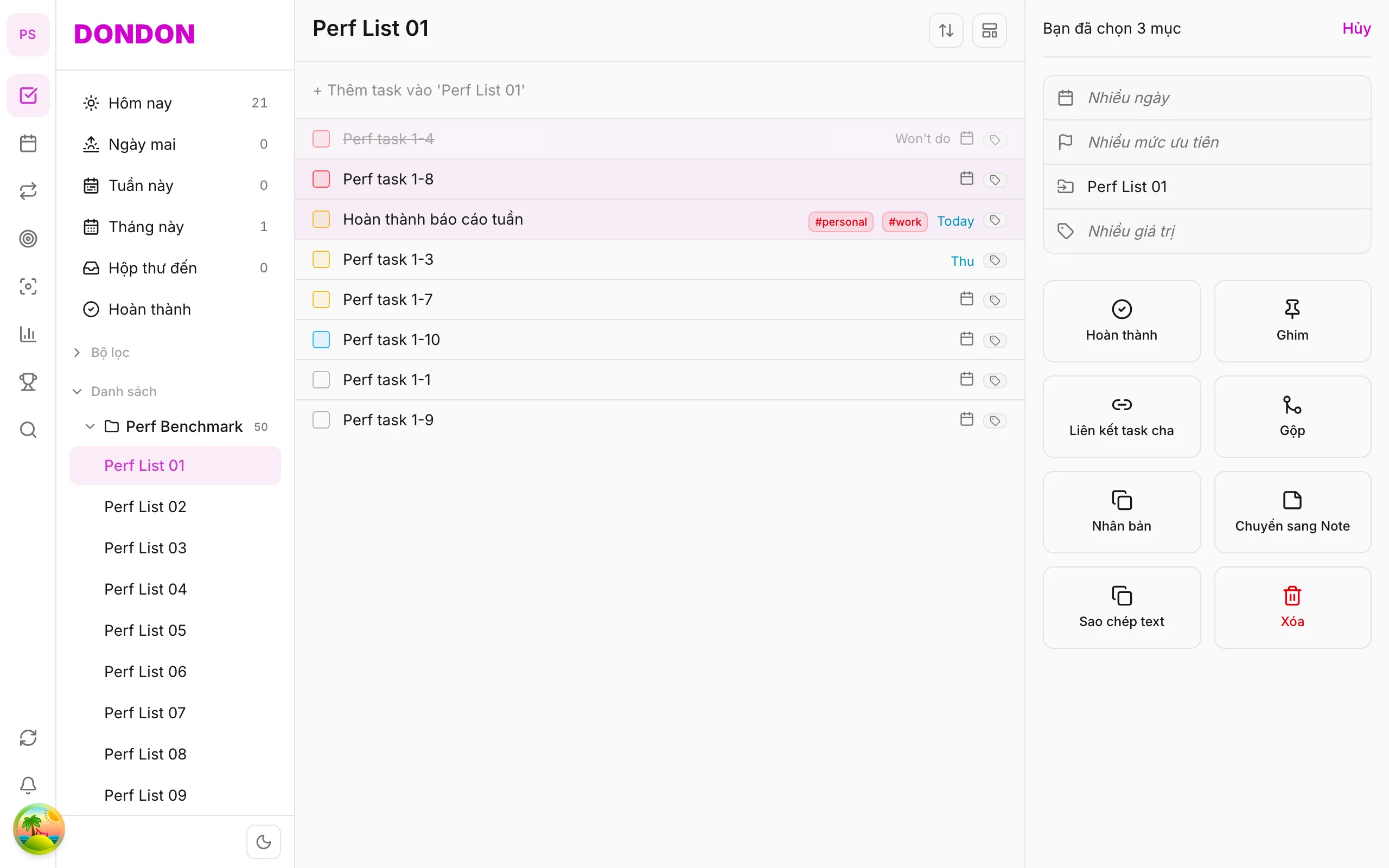
Select multiple tasks and bulk edit on web/desktop — not on mobile yet; edit one task via Task detail on the app.
On mobile (iOS/Android): Bulk edit not available. Edit one task: tap → Task detail → change date, priority, tags. Or long-press per task for single actions.
What you'll learn (web/desktop)
- Select multiple tasks with ⌘/Ctrl + click
- Open You selected N items pane
- Batch edit date, priority, tags
Before you start
| Platforms | Web · Desktop — primary for bulk edit. Mobile: see disclaimer above. |
| Plan | Free |
| Prerequisites | Mouse + keyboard; Tasks on web/desktop. |
Steps (web/desktop)
1. Select tasks
⌘/Ctrl + click each row — or Shift + click for a range.
2. Open bulk pane
Right pane shows You selected N items with Date, Priority, Tags.
3. Edit fields
Click field → pick new value — applies to all selected tasks.
4. Clear selection
Click empty area or Escape to close pane.
Mobile alternative
- Priority, Due date, Tags — per task
- Long-press menu for quick single actions
When bulk edit helps
You sometimes need to change many tasks at once: push everything from a cancelled meeting to next week, tag a group of errands, or raise the priority of a whole project. Editing them one at a time is slow and easy to forget halfway.
A worked example
After a planning session you have eight tasks for the product launch. ⌘/Ctrl + click each, or select a range with Shift + click. In the pane that says You selected 8 items, set Date to next Monday, Priority to High and add the tag #launch. All eight tasks update together.
Tips
- Check the selection count before you change anything. Edits apply to every selected task.
- Combine with bulk complete at the end of the week: finish what is done, then re-date what is left.
- Press Escape or click an empty area to clear the selection.
Mobile
Bulk edit is not on mobile yet. On the phone, edit tasks one by one from Task detail, or use the long-press menu described in the task context menu guide.
Common mistakes
- Selecting tasks from different lists and overwriting a date that mattered.
- Forgetting that a change to date or priority replaces the old value for all selected tasks.
Related guides
- Merge tasks (web/desktop)
- Bulk complete (web/desktop)
- Help Center
Try DonDon on your phone
Bulk edit coming to mobile — use the app for single tasks today. Sign up free.
Frequently asked questions
- Is bulk edit on iPhone/Android?
- **Not yet** — multi-select and bulk pane are web/desktop only. On mobile: edit each task in **Task detail**.
- Select all in a list?
- On web: view select-all shortcut or Shift + click range.
- Mixed values across tasks?
- Pane shows **Multiple values** — pick new value to overwrite all.
Create a free account and start managing tasks today.
Smart task management — focus on what matters.
Create free account