Quick actions
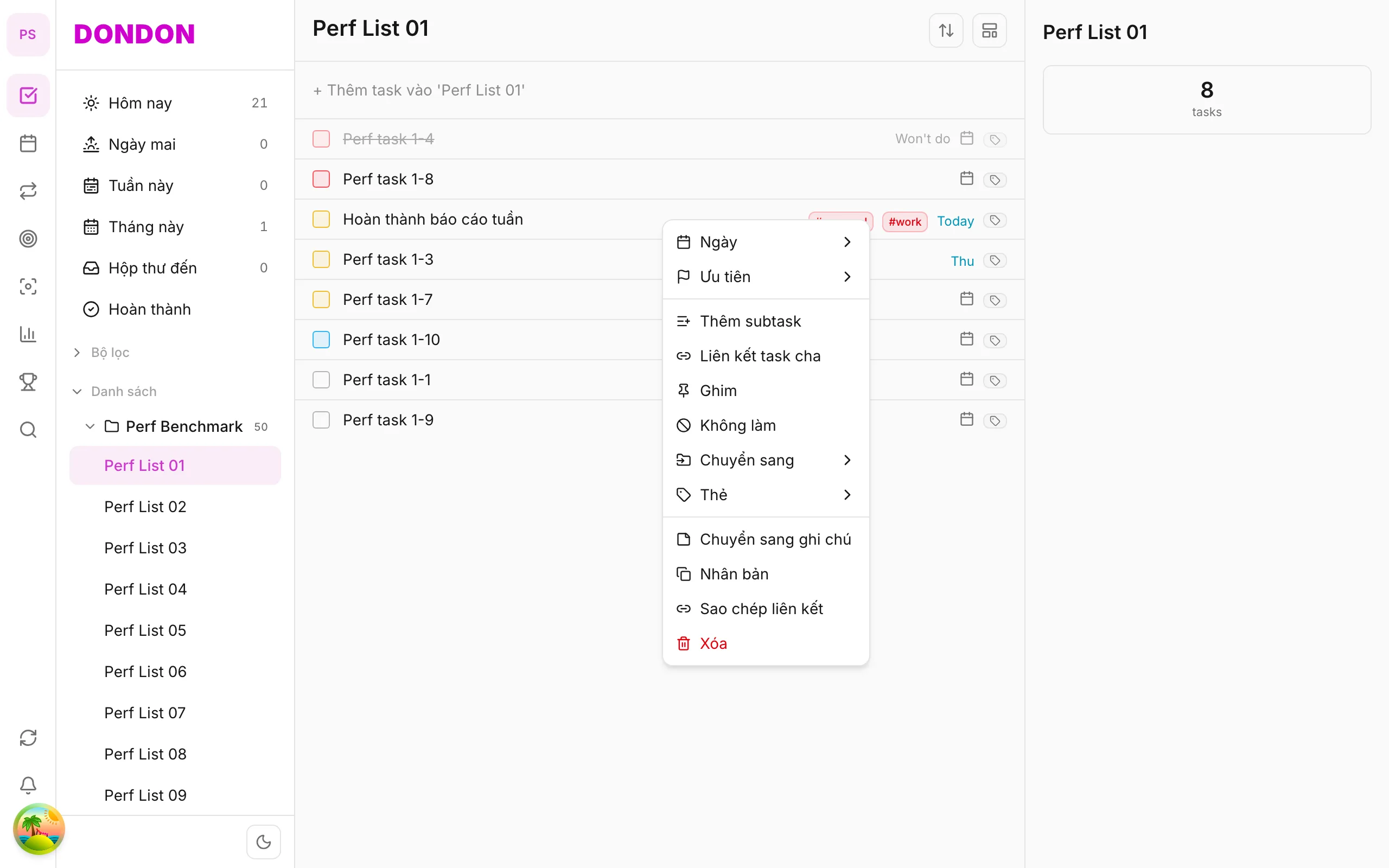
Move a task to another list on the app
Move tasks between Inbox and project lists via long-press → Move to — guide for iPhone/Android.
What you'll learn
- Move tasks to another list with long-press
- Pick destination from a sheet
- Triage Inbox → project lists
Before you start
| Platforms | iOS (TestFlight) · Android — primary guide. |
| Plan | Free |
| Prerequisites | At least 2 lists in workspace. |
Steps
1. Long-press task
Long-press the task to move.
2. Tap Move to
Tap Move to → list sheet appears.
3. Pick destination
Tap a list — e.g. Work, Personal. Task leaves the old list.
4. (Optional) From Task detail
Tap task → Task detail → change List if available.
Mobile tips
- Inbox = capture; move to lists when classified
- Free has list limits — see pricing to expand
On web/desktop: Right-click → Move to; Kanban drag between columns.
When moving helps
Capturing is fast; organising comes later. Most people drop everything into Inbox during the day and sort it once things calm down. Moving a task to the right list turns a pile of notes into a set of projects you can plan.
A worked example
At lunch you open Inbox and find six tasks. Long-press "Draft proposal", choose Move to and pick Work. Do the same for "Book dentist" and pick Personal. In two minutes Inbox is empty and each list holds only related tasks.
Tips
- Process Inbox on a schedule, for example once at lunchtime and once at the end of the day.
- Decide as you move. Add a due date or priority at the same time, so the task is ready to be planned.
- Mind the Free limits. The Free plan has a limited number of lists. See pricing if you need more.
Common mistakes
- Creating a new list for every small project. A few clear lists work better than many.
- Moving tasks without checking tags. Tags stay on the task, so they can still be used to filter across lists.
- Leaving tasks in Inbox forever. Inbox is a landing area, not storage.
Related guides
Try DonDon on your phone
Install on iOS (TestFlight) or Android. Sign up free if you don't have an account yet.
Frequently asked questions
- Does moving lists lose date/priority?
- No — task metadata stays when you change lists.
- Can I drag between lists on mobile?
- Not yet — use long-press → **Move to** or Task detail.
Create a free account and start managing tasks today.
Smart task management — focus on what matters.
Create free account