Quick actions
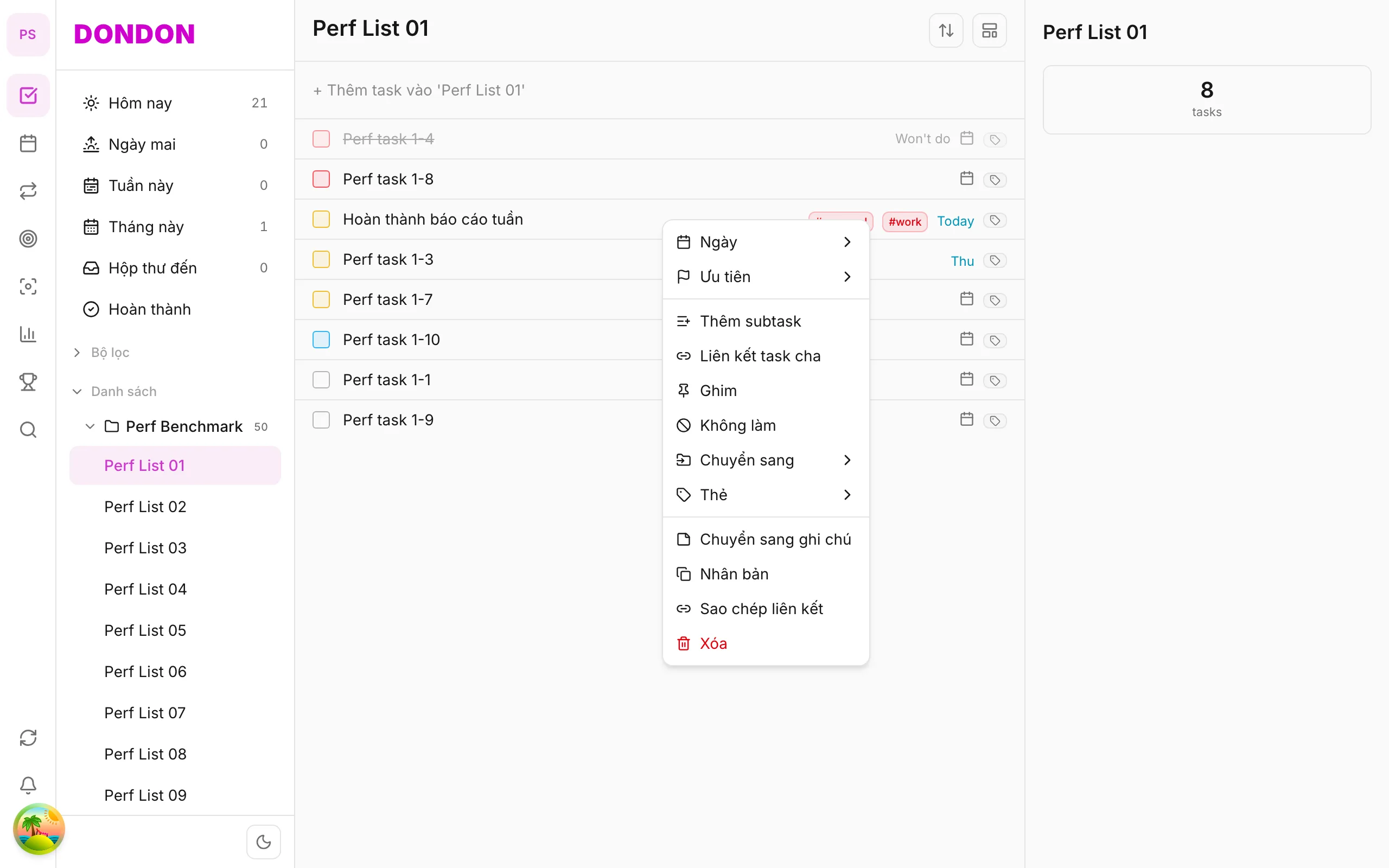
Task long-press menu — overview
Long-press tasks for due date, priority, pin, and quick actions — micro-guide hub on iPhone/Android.
What you'll learn
- Open menu with long-press on task row
- Action groups: date, priority, organize, workflow
- Links to detailed micro-guides
Before you start
| Platforms | iOS (TestFlight) · Android — primary guide. |
| Plan | Free — most items; some need Premium |
| Prerequisites | Home tab, any list. |
Steps
1. Open Home tab
Tap Home → pick a list (e.g. Inbox).
2. Long-press task
Hold the task row ~1 second. Menu shows Date, Priority, Pin, Move to, …
3. Tap items with arrows
Items like Date, Priority, Move to open a sheet or submenu — tap to choose (no hover).
4. One-tap actions
Single-level items — Pin, Duplicate, Won't do, Delete — apply on tap.
Action groups & micro-guides
| Group | Actions | Detail guide |
|---|---|---|
| Date | Due date, reminder, repeat | Due date, Reminder, Repeat |
| Organize | Priority, pin, list, tag | Priority, Pin, Move list, Tags |
| Workflow | Duplicate, delete, won't do | Duplicate, Delete, Won't do |
On web/desktop: Right-click; hover submenus.
Why the menu is worth learning
Almost everything you do to a task on mobile is behind one gesture: a long-press. Learning the groups in the menu saves many taps, because you do not have to open Task detail for common changes.
The groups at a glance
- Date and priority: when it is due and how important it is.
- Organise: move to a list, add tags, link a parent.
- Workflow: pin, duplicate, mark Won't do, convert to note.
- Danger zone: delete, usually at the bottom and red.
Items with an arrow open a sheet; single-level items apply at once.
A worked example
You open Inbox with ten new tasks. For each one, long-press and make two quick decisions: set the date with Date and move it with Move to. In under three minutes the inbox is processed without ever opening Task detail.
Tips
- Learn the three you use most first: Date, Priority and Move to.
- On web and desktop, right-click gives the same menu, with hover submenus.
- If you press by accident, close the menu by tapping outside it; nothing changes until you choose an item.
Common mistakes
- Tapping Delete when you meant Won't do. Read the label before you confirm.
- Using the menu for bulk work. On web, bulk edit is faster.
Related guides
Try DonDon on your phone
Install on iOS (TestFlight) or Android. Sign up free if you don't have an account yet.
Frequently asked questions
- How is long-press different from tap?
- Tap opens Task detail; long-press opens quick action menu.
- I don't see Repeat?
- Repeat in Task detail or **Date** → **Pick date…** — Premium required.
Create a free account and start managing tasks today.
Smart task management — focus on what matters.
Create free account