Quick actions
Set a task reminder on the app
Enable push notifications via Task detail or long-press — reminder guide for iPhone/Android.
Free
What you’ll learn
- Enable push reminders for tasks on mobile
- Pick reminder time (e.g. 30 min before due)
- Allow notifications on iOS/Android
Before you start
| Platforms | iOS (TestFlight) · Android — primary guide. |
| Install | iOS: TestFlight (board link). Android: APK / Play internal when available. |
| Plan | Free — basic reminders |
| Prerequisites | Task with due date (recommended); notification permission enabled. |
Steps
1. Open reminder
Tap task → Task detail → Reminder.
Or long-press → Reminder.
2. Pick time
Choose a preset (e.g. At due time, 30 min before) or custom time.
3. Allow notifications
If iOS/Android prompts, tap Allow for push notifications.
4. Verify
At the set time, you get a notification — tap to open the task in the app.
Mobile tips
- Set a due date before enabling reminder
- See Sync & reminders for offline sync
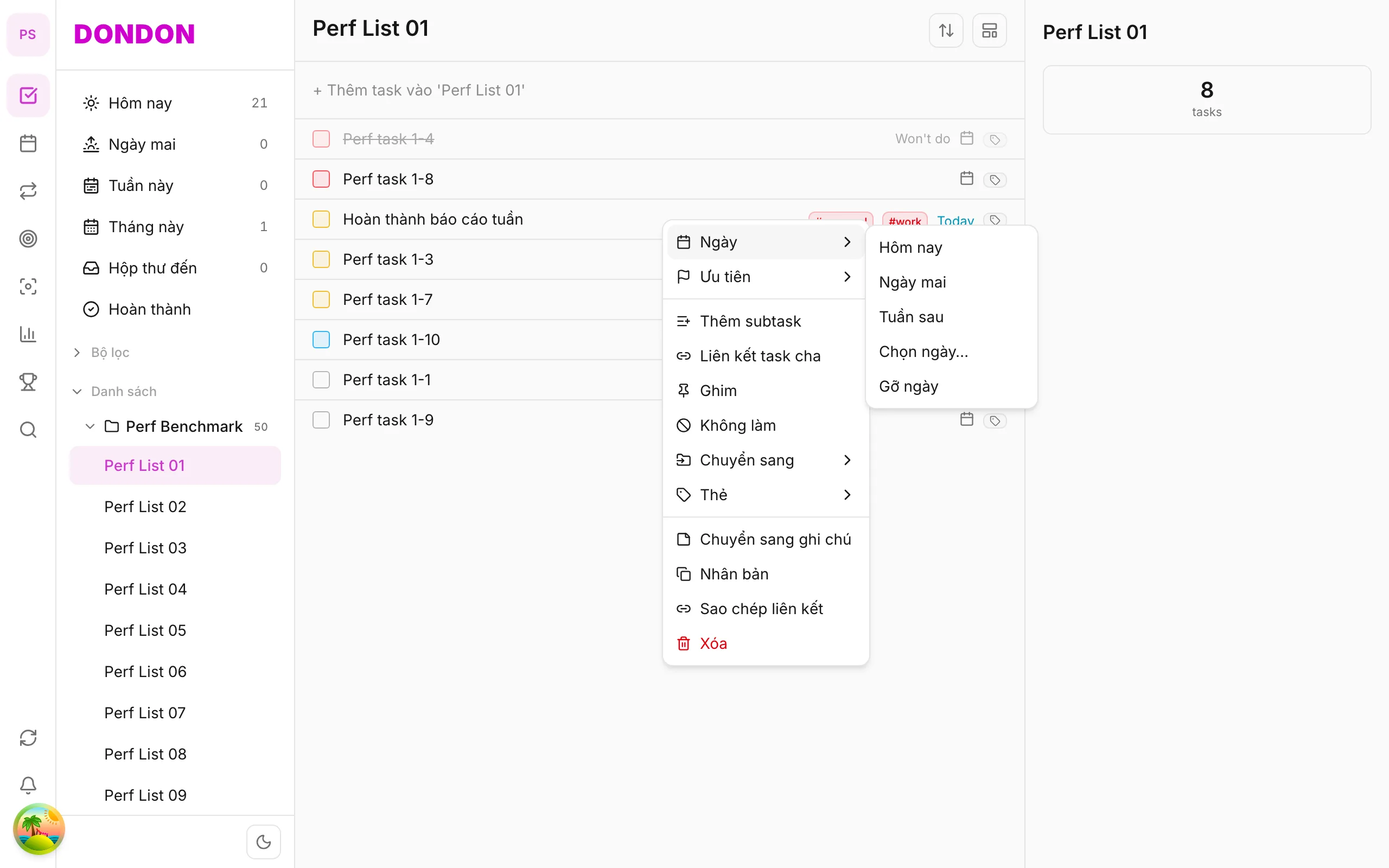
On web/desktop: Right-click → Date → Pick date… → Reminder in date picker.
Related guides
Try DonDon on your phone
Install on iOS (TestFlight) or Android. Sign up free if you don’t have an account yet.
Frequently asked questions
- Are reminders on Free?
- Basic reminders are on Free. Some advanced time options need Premium.
- I'm not getting reminders on iPhone?
- Check Settings → DonDon → Notifications are enabled; and the task has a reminder set.
- Where do I set reminders on mobile?
- Task detail → **Reminder**, or long-press → **Reminder**.
Create a free account and start managing tasks today.
Smart task management — focus on what matters.
Create free account