Quick actions
Set a due date on the app
Set Today, Tomorrow, or a custom due date via long-press or Task detail — due date guide for iPhone/Android.
Free
What you’ll learn
- Set due dates via long-press or Task detail
- Use quick presets (Today, Tomorrow, Next week)
- Pick a custom date in a sheet
- Remove an assigned date
Before you start
| Platforms | iOS (TestFlight) · Android — primary guide. Web/desktop: footnote at end. |
| Install | iOS: TestFlight (board link). Android: APK / Play internal when available. |
| Plan | Free — basic due dates |
| Prerequisites | Task on Home tab; signed in. |
Steps
1. Open the date menu
Option A: Long-press the task row → tap Date.
Option B: Tap task → Task detail → tap Due date.
2. Pick preset or custom
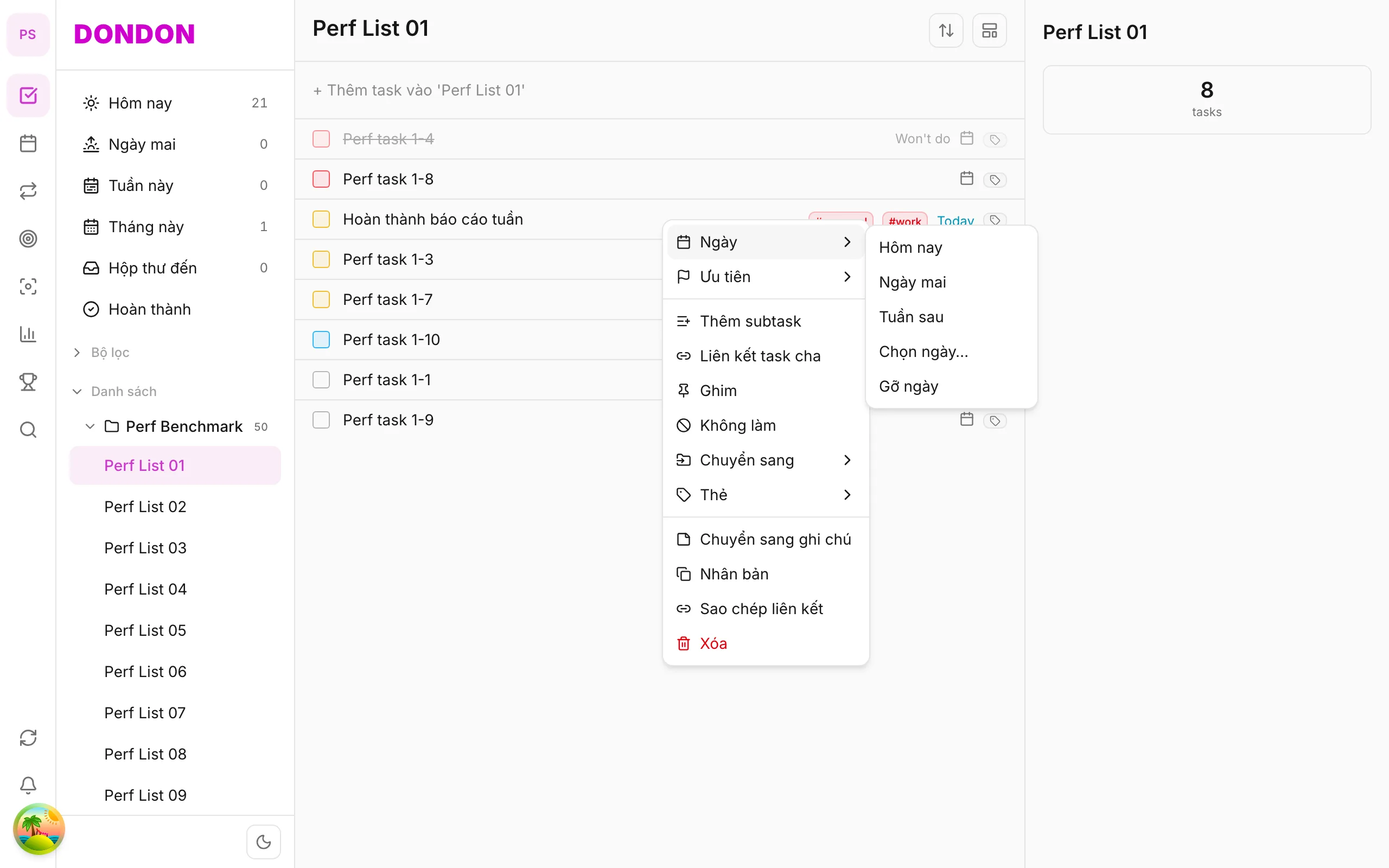
Sheet or submenu shows:
- Today / Tomorrow / Next week — apply immediately
- Pick date… — date picker (time if Premium)
- Clear date — remove due date
3. Confirm
A date badge appears on the task row. Dated tasks show in Today or Upcoming.
4. Clear date
Long-press → Date → Clear date, or clear due date in Task detail.
Mobile tips
- Type dates in Quick Add: tomorrow 9am, Friday
- See Repeat a task (Premium) and Reminders
On web/desktop: Right-click → Date submenu with hover.
Related guides
Try DonDon on your phone
Install on iOS (TestFlight) or Android. Sign up free if you don’t have an account yet.
Frequently asked questions
- Can I set a specific time on Free?
- Specific times and time blocks need Premium — see [Time block a task](/en/guides/task-time-block/).
- Where do dated tasks show on mobile?
- In Today and Upcoming sections on the Home tab, plus a date badge on the task row.
- Can I set a date with long-press?
- Yes — long-press task → **Date** → pick a preset or **Pick date…**.
Create a free account and start managing tasks today.
Smart task management — focus on what matters.
Create free account