Quick actions
Time block a task on the calendar app (Premium)
Assign work time slots via More → Calendar — Premium time blocking on iPhone/Android.
Premium
What you’ll learn
- Open Calendar from the More tab
- Assign time blocks to tasks with due dates
- Adjust slots with press-and-drag
Before you start
| Platforms | iOS (TestFlight) · Android — primary guide. |
| Install | iOS: TestFlight (board link). Android: APK / Play internal when available. |
| Plan | Premium — Calendar and time blocking |
| Prerequisites | Premium plan; task should have a due date. |
This feature requires Premium. See comparison.
Steps
1. Set due date (if needed)
Long-press task → Date → pick date, or Task detail → Due date.
2. Open Calendar
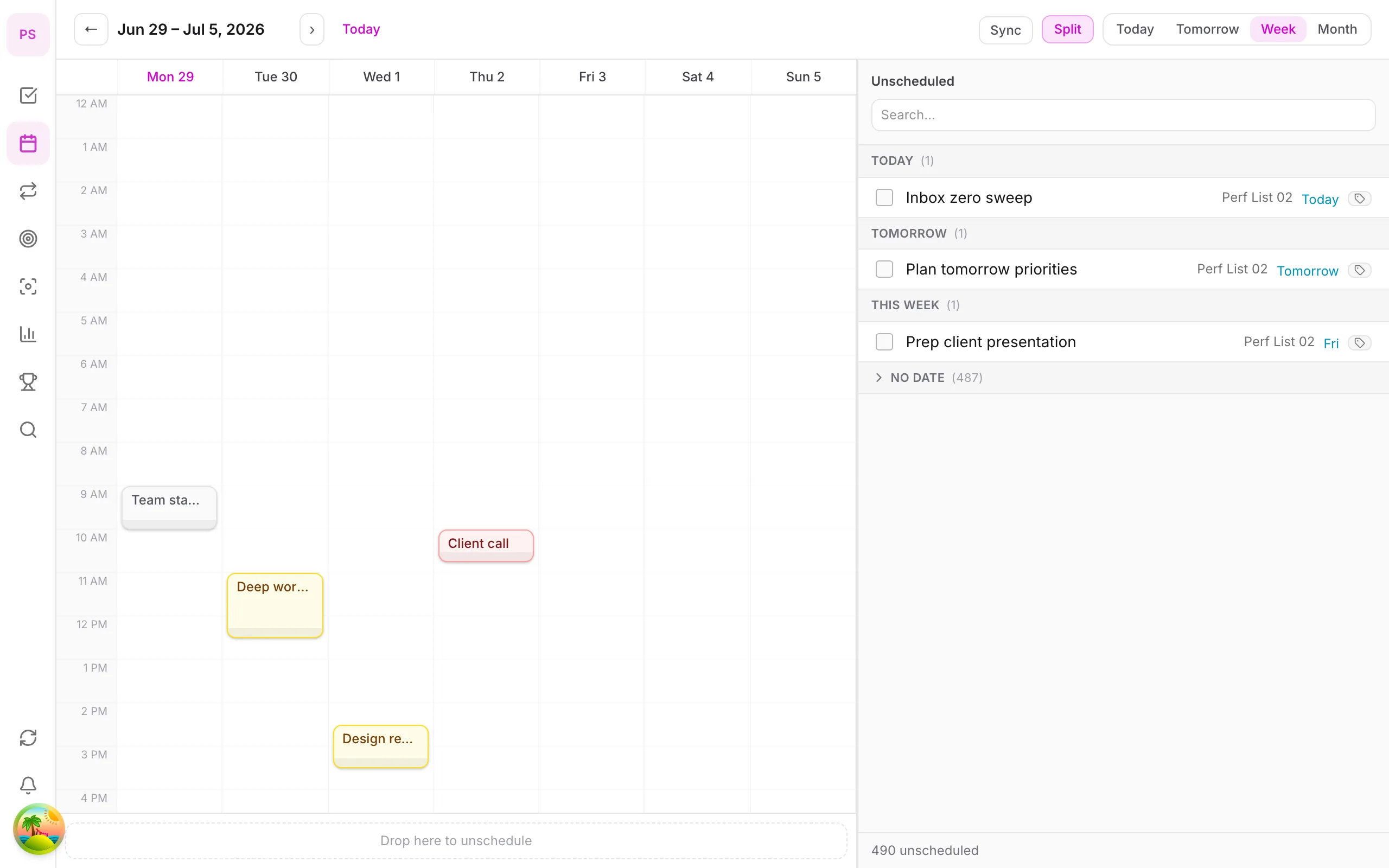
Tap More → Calendar. Tasks with due dates appear on the calendar.
3. Create time block
Tap task on calendar (or from unscheduled panel) → pick time slot. Press and drag to change duration.
4. Move block
Drag block to another time/day when plans change.
Mobile tips
- Combine with Pomodoro during focus blocks
- See pillar Calendar & time block
On web/desktop: Drag tasks from sidebar onto calendar with mouse.
Related guides
Try DonDon on your phone
Install on iOS (TestFlight) or Android. Sign up free if you don’t have an account yet.
Frequently asked questions
- Does time blocking need Premium?
- Yes — Calendar and time blocking require Premium.
- How do I time block a task on mobile?
- More → Calendar → tap task → pick a time slot, or set due date then drag block on calendar.
- How is it different from due date?
- Due date = deadline; time block = the hour slot you plan to work on the calendar.
Create a free account and start managing tasks today.
Smart task management — focus on what matters.
Create free account