Quick actions
Convert a task to a note on the app
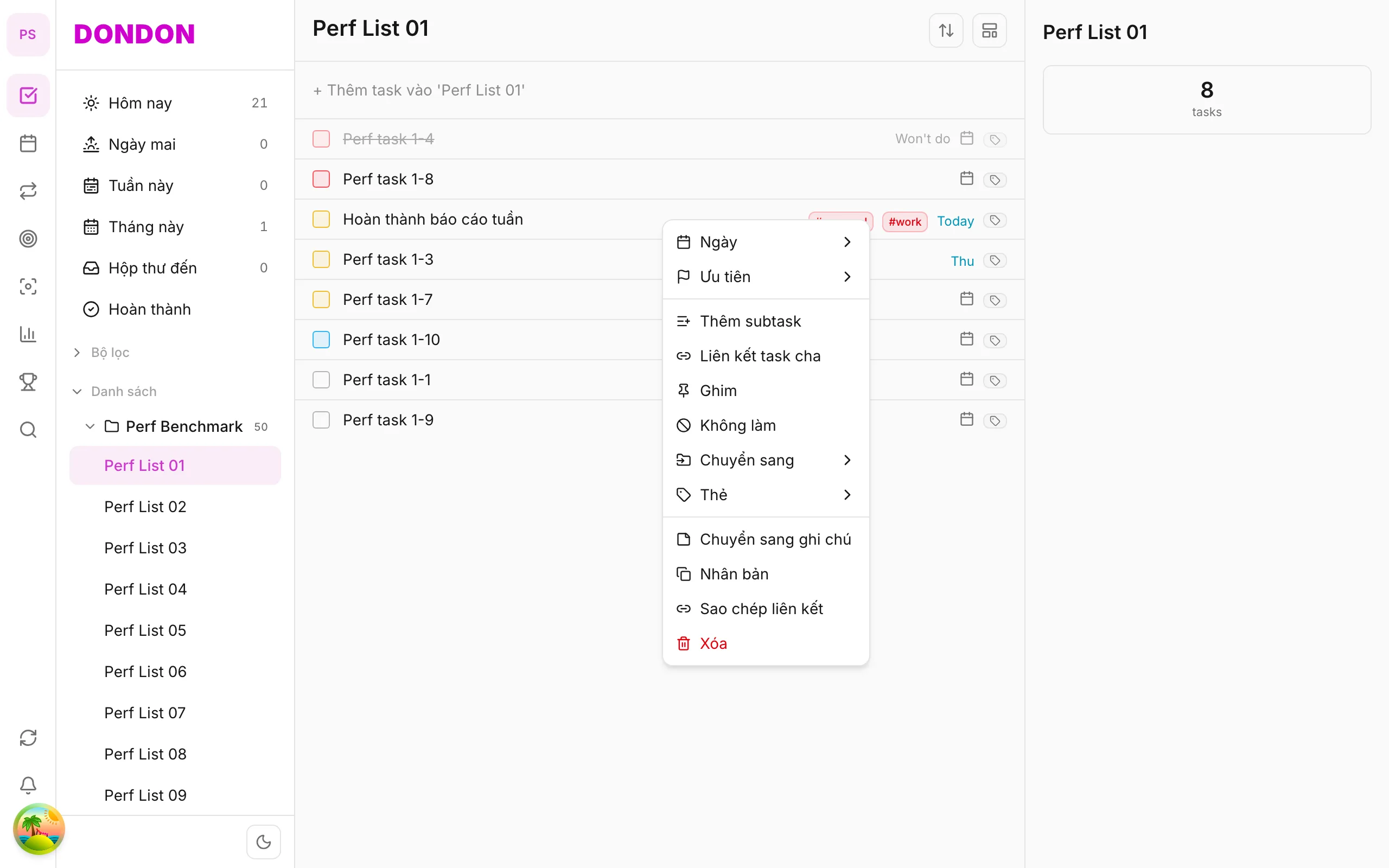
Turn a task into a note via long-press → Convert to note — on iPhone/Android.
What you'll learn
- Convert tasks to notes with long-press
- Find the note after conversion
- When to use instead of deleting
Before you start
| Platforms | iOS (TestFlight) · Android — primary guide. |
| Plan | Free |
| Prerequisites | Task on Home tab; Notes module in app. |
Steps
1. Long-press task
Long-press the task to convert.
2. Tap Convert to note
Tap Convert to note.
3. Open Notes
Go to More → Notes (or equivalent) — edit title and body.
4. Confirm
Task no longer in list; content lives in Notes.
Mobile tips
- Use when task is reference only, not actionable
- See pillar Notes for full workflow
On web/desktop: Right-click → Convert to note; Notes on icon rail.
When converting helps
Task lists work best when every item is something you can do. Reference material, such as a login hint, a meeting summary or an idea, clutters the list and never gets "done". Converting such tasks to notes moves them out of your action list while keeping the content.
Task or note?
Ask one question: Is there a next action? If yes, it is a task. If it is information you want to find later, it is a note. A good test is whether you would ever tick it off.
A worked example
Your list has "Wi-Fi password for the new office: ..." and "Ideas for the launch email". Neither can be completed. Long-press each task, tap Convert to note, and then open More → Notes to give them clear titles. Your Today list now shows only work you can do.
Tips
- Add tags to notes you will want to find again; see Notes.
- If a note later turns into work, convert it back to a task.
- Do not delete a task just because it is reference; convert it so the content survives.
Common mistakes
- Leaving long descriptions inside tasks. Notes are the better home for them.
- Expecting converted notes to stay in the task list. They move to Notes.
Related guides
Try DonDon on your phone
Install on iOS (TestFlight) or Android. Sign up free if you don't have an account yet.
Frequently asked questions
- Does the task disappear after convert?
- Yes — content moves to Notes; the original task is gone from the list.
- Where is Notes on mobile?
- Check **More** or Notes entry in app — UI path may vary by version.
Create a free account and start managing tasks today.
Smart task management — focus on what matters.
Create free account