Tasks & lists
Notes in the DonDon app
Create note lists, write notes, and convert task ↔ note — Notes in workspace on iPhone/Android.
What you'll learn
- Find Notes on mobile
- Create notes with tags and due dates
- Convert task ↔ note
Before you start
| Platforms | iOS (TestFlight) · Android — primary guide. |
| Plan | Free — basic notes |
| Prerequisites | Signed in to the app. |
Steps
1. Open Notes
Tap More → Notes, or Organize menu on Home → create Note list type.
2. Add a note
Tap + Note → enter title and body. Save to sync workspace.
3. Tags and due date
In note detail: attach tags, due date — dated notes may appear in Today (like tasks).
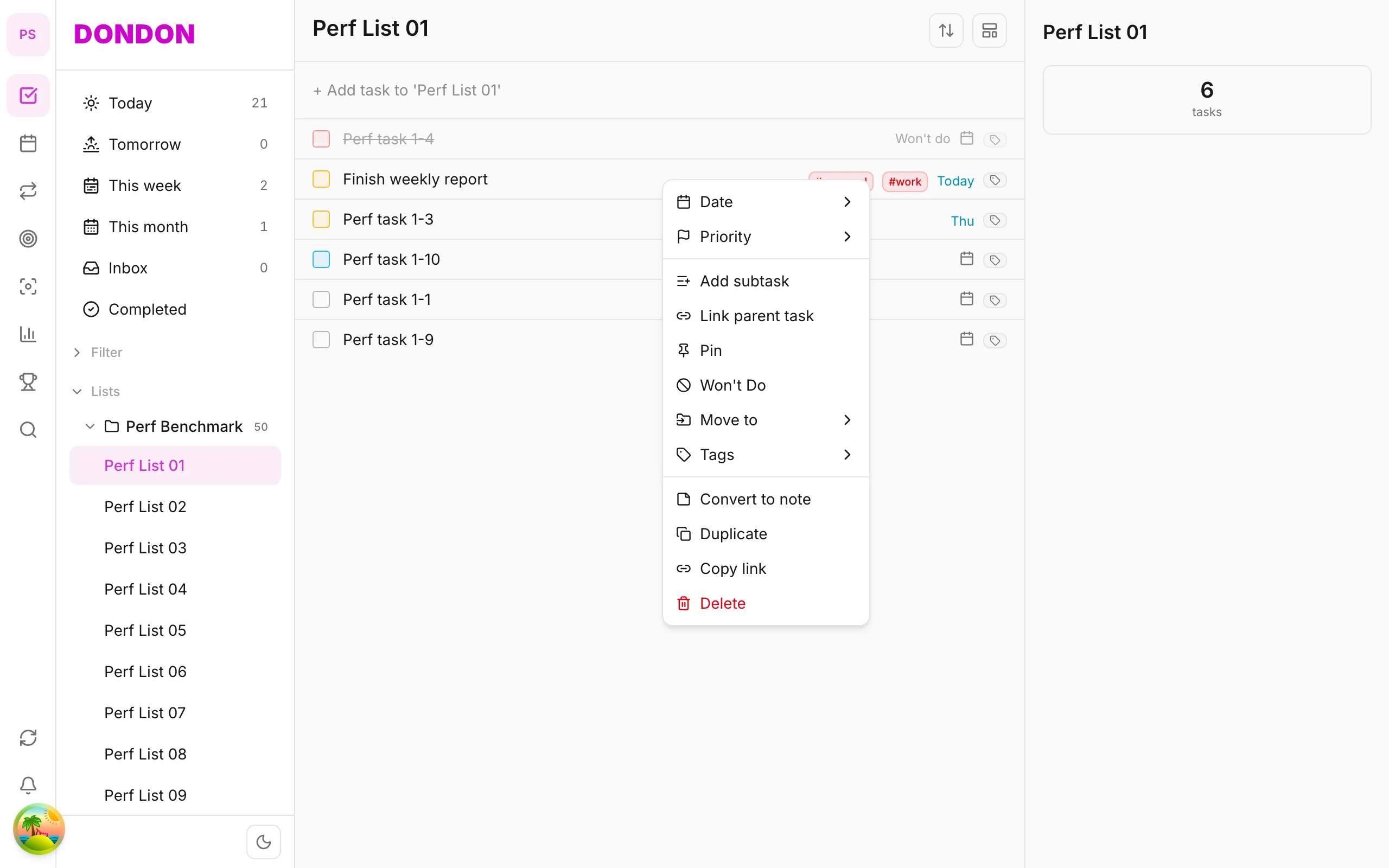
4. Convert task ↔ note
- Task → note: Long-press → Convert to note
- Note → task: note detail → Convert to task (if available in app)
Mobile tips
- Use Search tab to find notes quickly
On web/desktop: Notes on icon rail; sidebar Note lists.
When to use notes
Tasks are for things you will do. Notes are for things you want to keep: meeting minutes, ideas, a checklist you copy, or reference you need again. Keeping them apart stops your task list from filling up with items that can never be ticked off.
A worked example
After a client call, create a note titled "Acme call - 3 Nov". Write the decisions in the body, add the tag #acme, and give it a due date if you need to revisit it. If one decision needs action, create a task from it. The summary stays in Notes, and the action lives in your list.
Tags and dates
Notes can carry tags and due dates. A dated note may appear in Today alongside your tasks, which is useful for something you want to read or review on a particular day.
Task to note and back
- Use Convert to note when a task turns out to be reference only.
- Convert a note to a task when it becomes an action, if the app offers that option for the item.
Tips
- Give notes clear titles so they are easy to search later.
- Review notes weekly and turn actionable lines into tasks.
- Do not use notes as an inbox. Capture actions with quick add.
Common mistakes
- Storing to-dos inside long notes where you will not see them.
- Creating notes without tags, then struggling to find them.
A simple test: task or note?
When something new comes to mind, ask one question: "Will I do something with this, or will I need to read it later?"
- "I will do it" is a task. Give it a date and let it show up in Today.
- "I will read it again" is a note. Give it a clear title and a tag.
- "Both" is two items: keep the background as a note, and write the action as a separate task so it can be ticked off.
This habit keeps your task list short and makes your notes easier to trust.
Keeping notes easy to find
A pile of untitled notes is hard to use. A few small habits make a big difference:
- Title with the subject first. "Acme call - 3 Nov" is easier to scan than "Call notes".
- Use one tag per topic or project. Reusing the same tag, such as
#acmeor#ideas, means a search finds everything in one go. - Add a due date only when you need a reminder to look again. A dated note can appear in Today, so use dates sparingly or Today fills up with reading.
- Keep each note about one subject. Short notes are quicker to find and quicker to convert into a task later.
A weekly note review
Once a week, spend five minutes with your notes:
- Open each recent note and look for lines that are really actions.
- Turn those lines into tasks with quick add, or convert the whole note if it has become a to-do.
- Remove tags or dates that no longer apply.
- Leave reference material as it is, so it is there when you search for it.
Frequently asked questions
Do notes sync between my phone and the web app? Yes. Notes are saved to your workspace when you save them, so you can open them on any device where you are signed in.
Can a note appear in Today? A note with a due date may appear in Today, like a task. A note without a date stays in Notes.
What if a task becomes a reference item? Use Convert to note instead of deleting the task, so you keep the content.
Related guides
Try DonDon on your phone
Install on iOS (TestFlight) or Android. Sign up free if you don't have an account yet.
Frequently asked questions
- Do Notes need Premium?
- Note lists and basic notes are on Free.
- Where is Notes on mobile?
- **More** → **Notes** or create Note-type list in Organize menu — UI path may vary by version.
- Convert task to note?
- Long-press → **Convert to note** — see [detailed guide](/guides/convert-task-to-note/).
Create a free account and start managing tasks today.
Smart task management — focus on what matters.
Create free account