Quick actions
Set a due date on the app
Set Today, Tomorrow, or a custom due date via long-press or Task detail — due date guide for iPhone/Android.
What you'll learn
- Set due dates via long-press or Task detail
- Use quick presets (Today, Tomorrow, Next week)
- Pick a custom date in a sheet
- Remove an assigned date
Before you start
| Platforms | iOS (TestFlight) · Android — primary guide. Web/desktop: footnote at end. |
| Install | iOS: TestFlight (board link). Android: APK / Play internal when available. |
| Plan | Free — basic due dates |
| Prerequisites | Task on Home tab; signed in. |
Steps
1. Open the date menu
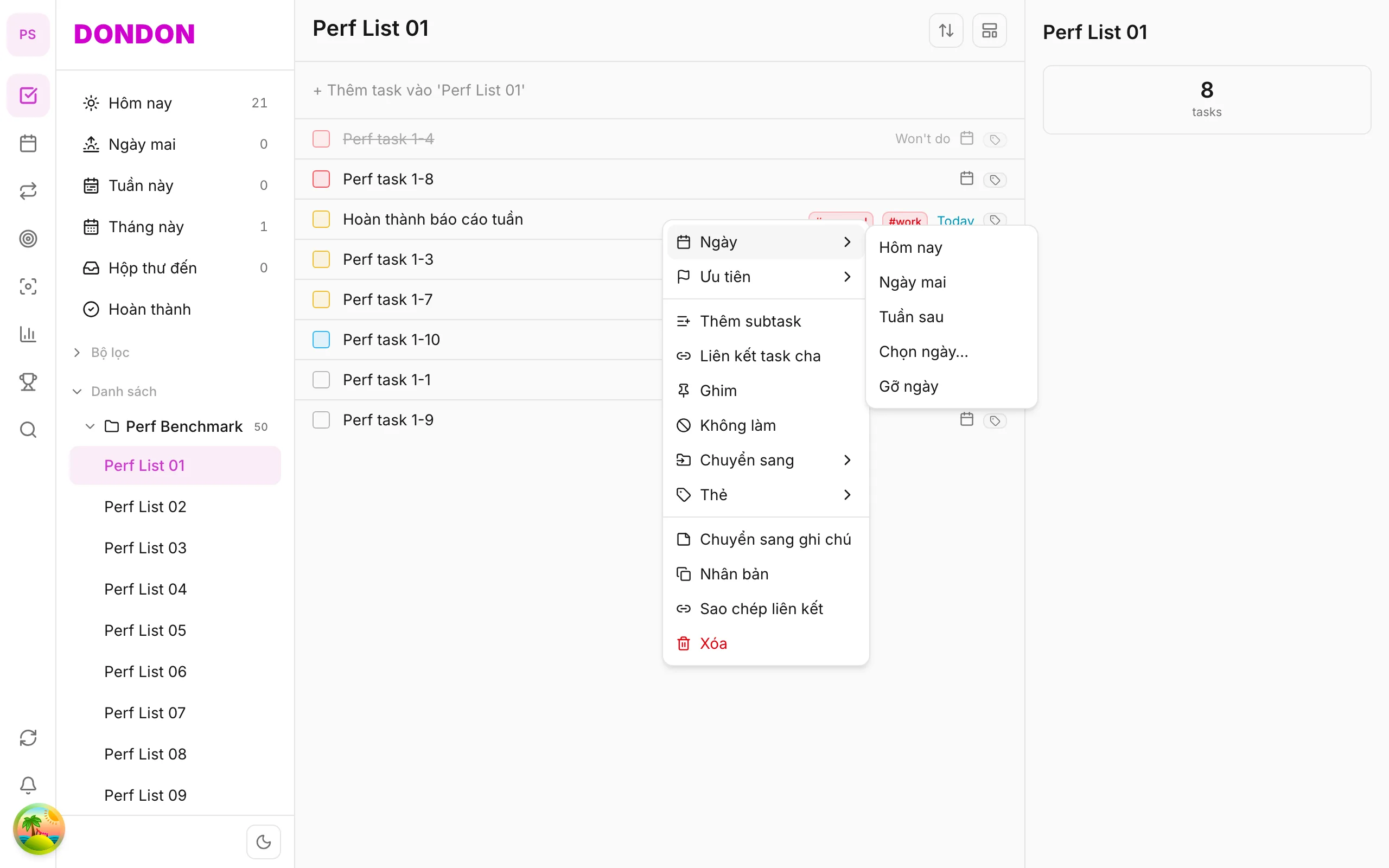
Option A: Long-press the task row → tap Date.
Option B: Tap task → Task detail → tap Due date.
2. Pick preset or custom
Sheet or submenu shows:
- Today / Tomorrow / Next week — apply immediately
- Pick date… — date picker (time if Premium)
- Clear date — remove due date
3. Confirm
A date badge appears on the task row. Dated tasks show in Today or Upcoming.
4. Clear date
Long-press → Date → Clear date, or clear due date in Task detail.
Mobile tips
- Type dates in Quick Add: tomorrow 9am, Friday
- See Repeat a task (Premium) and Reminders
On web/desktop: Right-click → Date submenu with hover.
Why dates matter
A task without a date can sit in a list forever. A date gives it a place in your week: it appears in Today when it is due and in Upcoming before that. Dated tasks are the base of daily planning, reminders and time blocks.
Picking the right date
- Today / Tomorrow / Next week: fast presets for most tasks.
- Pick date...: for a specific day. Setting a time requires Premium.
- Clear date: removes the date when the task becomes "someday".
Be honest about dates. A date means "I plan to work on this then", not "this would be nice".
A worked example
On Sunday night you open Inbox and give every task a rough date: urgent items today, others tomorrow or next week. On Monday you open Today and see exactly what you committed to, with nothing hidden in the clutter.
Fast ways to set a date
- Type it in quick add:
tomorrow 9am,Friday. - Long-press the task, then choose Date.
- Use Task detail when you also want to set a reminder.
Common mistakes
- Setting every task for today. A list you can never finish teaches you to ignore it.
- Leaving tasks undated and expecting them to show up in Today.
- Pushing a task forward again and again. After a few postponements, delete it, mark it Won't do or break it down.
Related guides
Try DonDon on your phone
Install on iOS (TestFlight) or Android. Sign up free if you don't have an account yet.
Frequently asked questions
- Can I set a specific time on Free?
- Specific times and time blocks need Premium — see [Time block a task](/guides/task-time-block/).
- Where do dated tasks show on mobile?
- In Today and Upcoming sections on the Home tab, plus a date badge on the task row.
- Can I set a date with long-press?
- Yes — long-press task → **Date** → pick a preset or **Pick date…**.
Create a free account and start managing tasks today.
Smart task management — focus on what matters.
Create free account