Tasks & lists
Smart lists & filters on the app
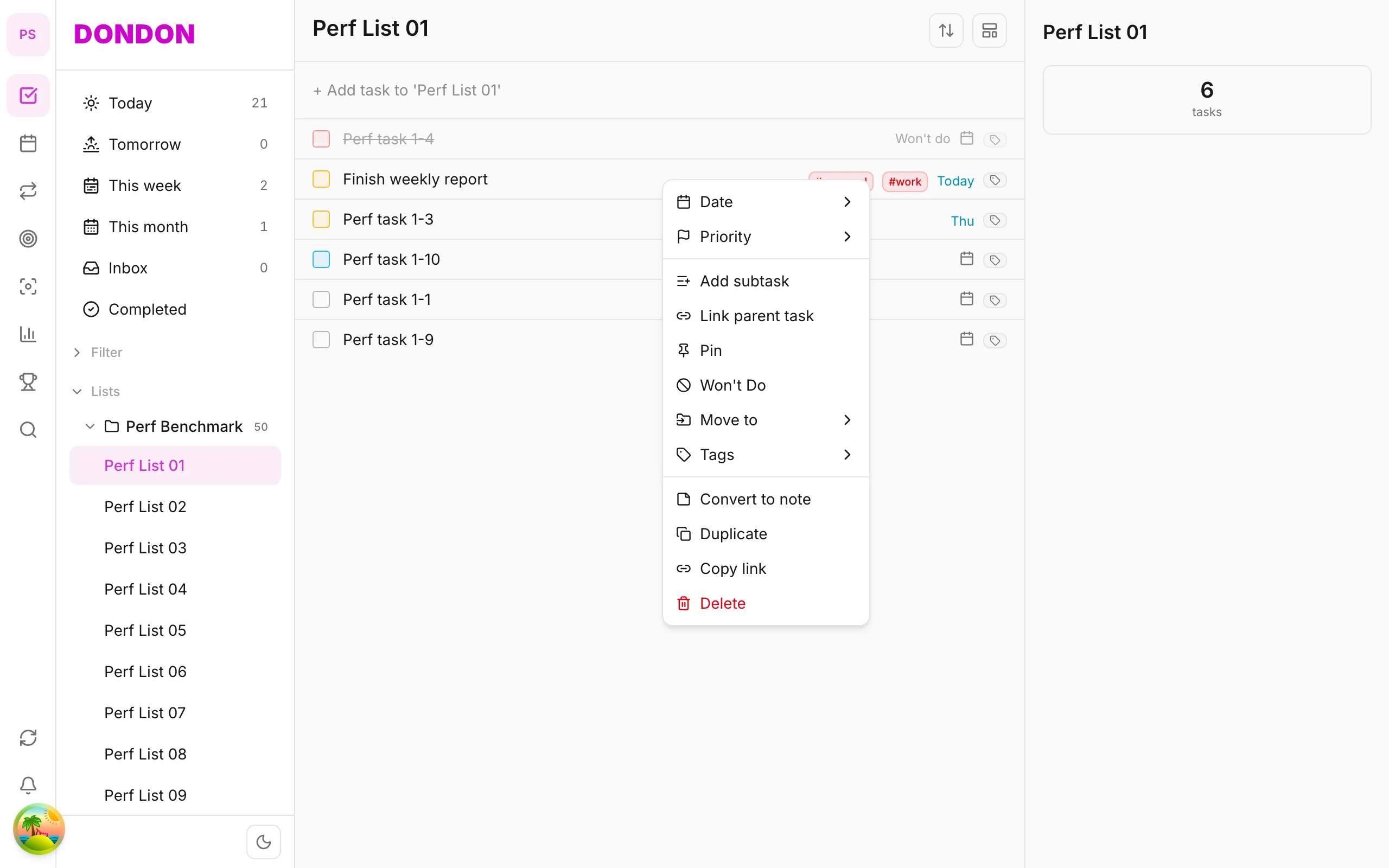
Filter tasks via Today, Upcoming on Home tab — custom smart lists need Premium; web/mobile parity note.
What you'll learn
- Use Today / Upcoming on Home (Free)
- Create custom smart lists (Premium — mainly web)
- Understand mobile filter limits
Before you start
| Platforms | iOS (TestFlight) · Android — primary guide. |
| Plan | Mixed — Today/Upcoming Free; custom smart lists Premium |
| Prerequisites | Tasks with due dates for Today/Upcoming. |
Steps
1. Built-in filters (Free)
On Home tab, tap Today or Upcoming — view tasks by date.
2. List filters
Tap filter icon on list bar (if available) — filter by tag, priority (per version).
3. Custom smart lists (Premium)
Build complex filters (AND/OR tags, priority) — fuller on web. On mobile: use saved smart lists if app shows them.
4. Save favorite views
On web: save smart list → syncs to mobile in same workspace.
Mobile tips
- Add tags to filter by topic
- Don't claim 100% web parity — check live app
On web/desktop: Full smart list editor; sidebar filters.
When filters help
As your list grows, scrolling stops working. Filters show only what you need right now: what is due today, what is coming this week, or everything tagged with a certain topic.
Free views
On the Home tab, Today shows what is due today and Upcoming shows what is next. For many people these two views are enough for daily planning: start the day in Today, and look at Upcoming when you plan the week.
Custom smart lists (Premium)
Smart lists save a filter as a view. With tags and priority combined, you can build views such as "high priority and tagged #work" or "anything tagged #waiting". The full editor is on web, and saved smart lists sync to the mobile app in the same workspace.
A worked example
You tag errands with #errands and set low priority for non-urgent ones. A smart list called "Errands this week" gathers them in one place. On Saturday morning you open it and clear the list in one trip.
Tips
- Start with tags first. Filters are only as good as your tags.
- Keep a small number of smart lists. Three or four useful ones beat twenty.
- Check the live app for which filters are available on mobile, as it can differ from the web editor.
Common mistakes
- Building complex filters before you have tags or dates on your tasks.
- Expecting the mobile app to offer exactly the same editor as the web.
Related guides
Try DonDon on your phone
Install on iOS (TestFlight) or Android. Sign up free if you don't have an account yet.
Frequently asked questions
- Do custom smart lists need Premium?
- Yes — custom filters/smart lists are Premium. Free: Today, Upcoming sections on Home.
- Where to filter on mobile?
- **Home** tab — tap Today, Upcoming; filter icon on list bar (if available).
- Full web filters on mobile?
- Some advanced filters are web/desktop only — verify in-app before claiming.
Create a free account and start managing tasks today.
Smart task management — focus on what matters.
Create free account