Calendar & time-block
Calendar & time blocking on the app
Schedule tasks by day and week on iPhone/Android — More → Calendar. Premium feature; step-by-step time block guide on mobile.
What you'll learn
- Open Calendar from the More tab on mobile
- View day and week calendars
- Assign time blocks to tasks
- Adjust time slots with press-and-drag
Before you start
| Platforms | iOS (TestFlight) · Android — primary guide. Web/desktop: footnote at end of section if different. |
| Install | iOS: TestFlight (board link). Android: APK / Play internal when available. |
| Plan | Premium — Calendar and time blocking |
| Prerequisites | Signed in; active Premium plan. |
This feature requires Premium. See comparison.
Steps
1. Open Calendar on mobile
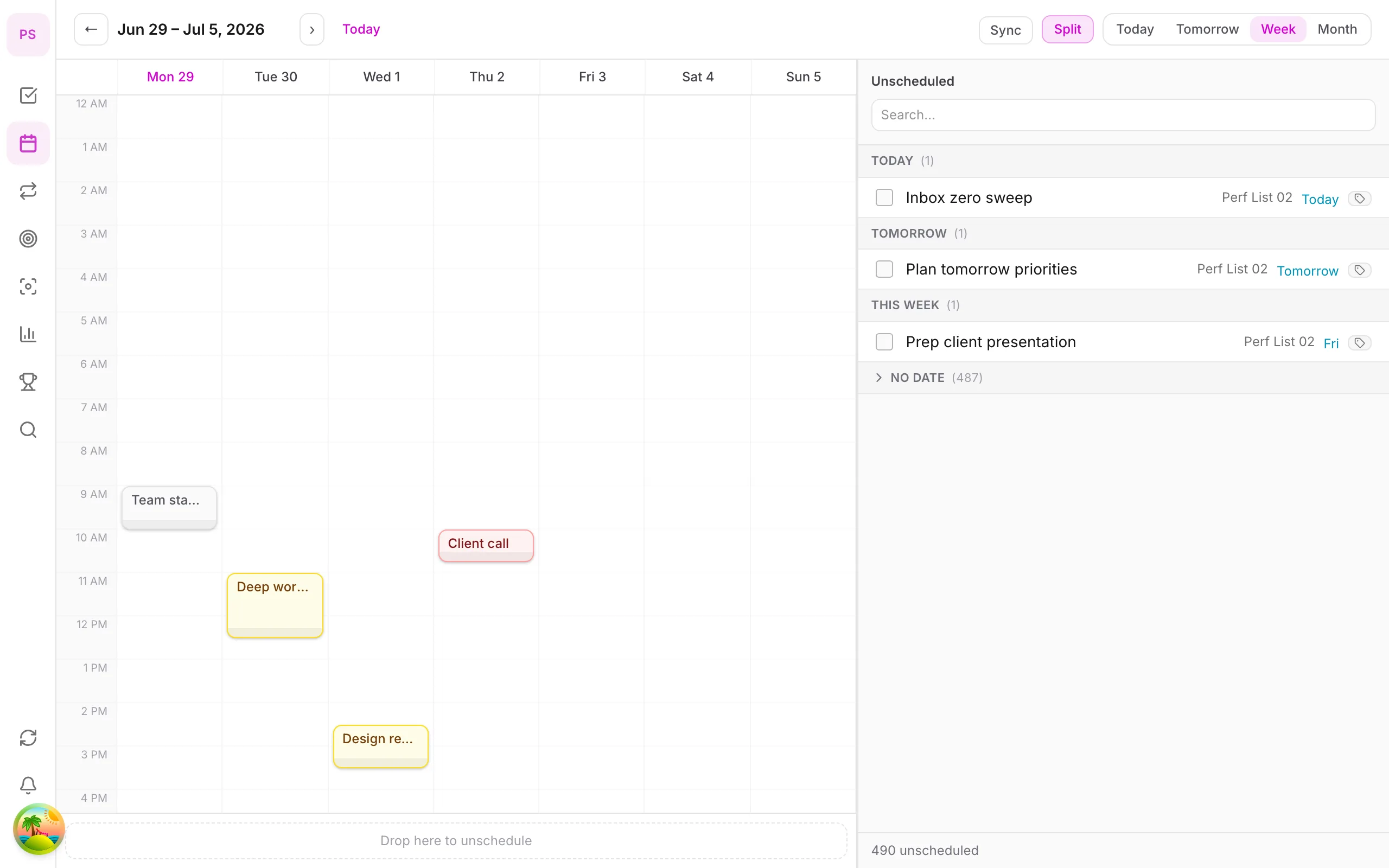
Tap More → Calendar. Select Day or Week view at the top.
2. View tasks with due dates
Tasks with assigned dates (from Home or Quick Add) appear on the calendar. Tap a task to open Task detail.
3. Create a time block
Tap an unscheduled task (or from the unscheduled panel) → pick a time slot on the calendar. DonDon creates a block with default duration — press and drag the block edge to change end time.
4. Move blocks
Press and hold a block and drag to another day/time. Drag the bottom edge to resize.
5. Plan your week
In Week view, allocate blocks for deep work, meetings, and buffers. Combine with Pomodoro during focus blocks.
Mobile tips
- Set due date in Home first — tasks appear on the calendar automatically
- Time blocks help you schedule daily work, not just record deadlines
- External calendar sync: see Sync & reminders
On web/desktop: Drag tasks from sidebar onto calendar with mouse; fuller Month view.
Why a calendar view helps
A list shows what you have to do. A calendar shows whether you have time to do it. Putting tasks on a day or week view makes overcommitment visible before it becomes stress.
Day or week?
- Day view is for execution: what am I doing now and next?
- Week view is for planning: where do deep work, meetings and buffers fit?
A worked example
On Sunday you open Week view. Meetings take Tuesday and Thursday mornings. You place two focus blocks of 90 minutes on Monday and Wednesday morning for the main project, leave Friday afternoon open as a buffer, and drag three small tasks into short blocks after lunch. During the week you move blocks when plans change, instead of abandoning the plan.
Tips
- Set a due date first, so tasks appear on the calendar.
- Block your hardest task in your best hours.
- Leave about a fifth of the day empty for surprises.
- Use Pomodoro inside a focus block.
- Read the time blocking guide for the full method.
Premium note
Calendar and time blocking are Premium. The Free plan keeps due dates, Today and Upcoming views, and quick add.
Common mistakes
- Filling every slot. A plan with no slack breaks at the first interruption.
- Mixing two ideas in one block. Give each block one task.
Related guides
Try DonDon on your phone
Install on iOS (TestFlight) or Android — your account syncs with web. Sign up free if you don't have an account yet.
Frequently asked questions
- Is Calendar available on Free?
- No — Calendar (day/week/month) and time blocking require Premium. [See comparison](/pricing/).
- How is time block different from due date?
- Due date is the deadline; time block is the hour slot you plan to work on the calendar — for daily planning.
- Does it sync with Google Calendar?
- Premium supports external calendar sync (up to 2 accounts). See [Sync & reminders](/guides/sync-reminders/).
Create a free account and start managing tasks today.
Smart task management — focus on what matters.
Create free account