Getting started
Getting started with DonDon on iPhone & Android
Install the todo app on iOS TestFlight, explore the tab bar, and add your first task with Quick Add — free task manager on mobile.
What you'll learn
- Install DonDon on iOS (TestFlight) or Android
- Sign in and open your first workspace
- Navigate the tab bar and add a task with Quick Add
- Mark complete with a tap or swipe
Before you start
| Platforms | iOS (TestFlight) · Android — primary guide. Web/desktop: footnote at end of section if different. |
| Install | iOS: TestFlight (board link). Android: APK / Play internal when available. |
| Plan | Mixed — Free covers tasks and habits; full calendar requires Premium. |
| Prerequisites | Signed in to the app; default workspace has an Inbox list. |
Steps
1. Install the app and sign in
On iPhone, open the TestFlight link and install DonDon. On Android, use APK or Play internal (when available). Open the app → Sign in with email and password. You land in the default workspace with an Inbox list.
2. Explore the tab bar
The bottom tab bar includes Home, Habits, Goals, More, and Search:
- Home — task lists (Today, Upcoming, Inbox, …)
- Habits — habit tracking
- Goals — week/month/year goals
- More — Calendar, Focus, Achievements, Analytics, Settings
- Search — find tasks quickly
3. Add your first task
On the Home tab, tap the Quick Add bar (pill at the bottom) and type in natural language. DonDon parses time, tags, and lists when possible. Tap Add to save.
4. Mark complete
Tap the checkbox on the left or swipe right on the task row to mark Done. Achievements and streaks update as you build habits.
Mobile tips
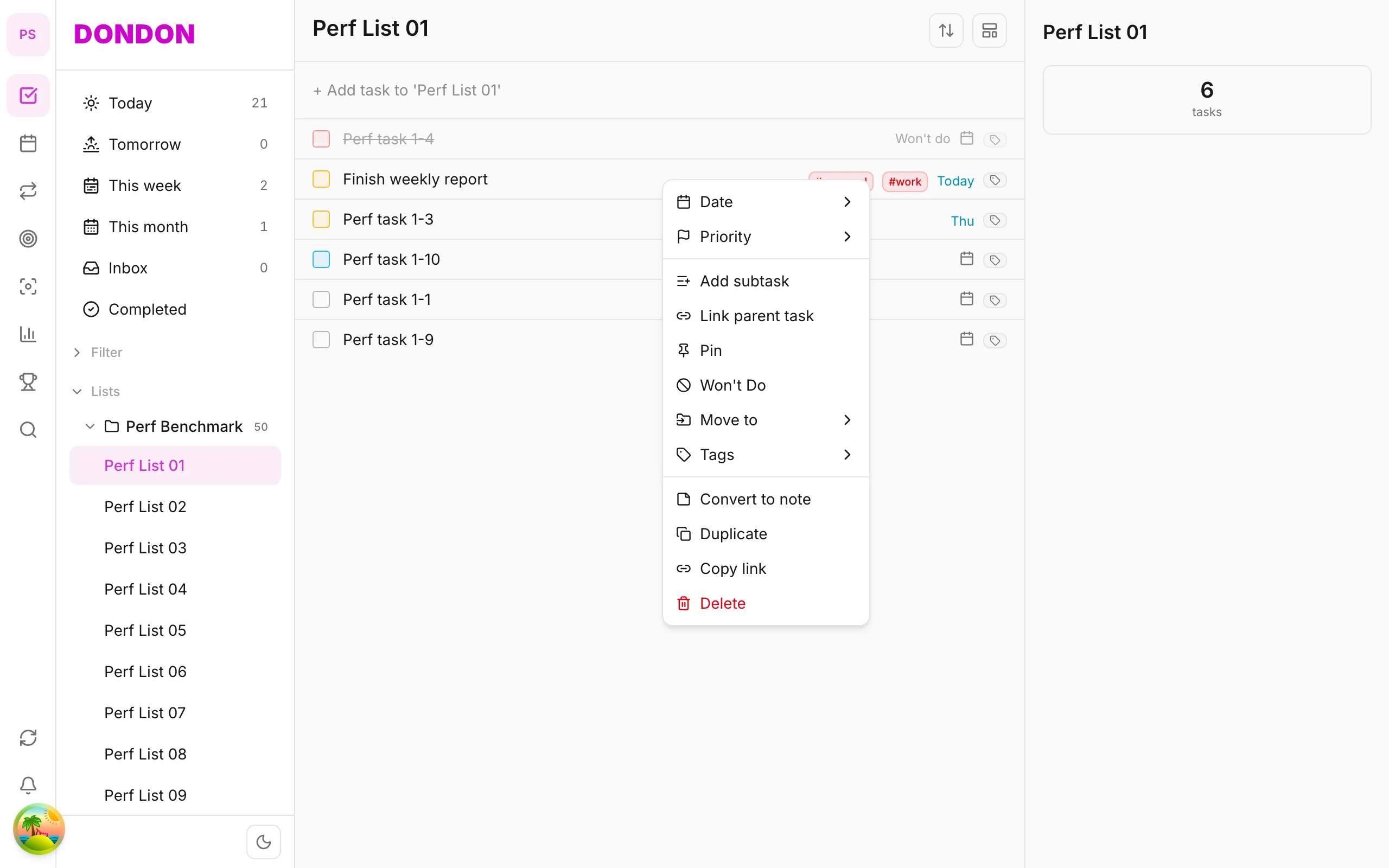
- Long-press a task: context menu (due date, priority, pin, …) — see Task context menu
- Swipe right on a task row: quick Done
- Quick Add pill: add tasks in natural language anytime on Home
On web/desktop: Left icon rail; right-click tasks; ⌘⇧Space opens Quick Add popup.
A suggested first day
You do not need to learn every feature. Start with a small routine and add things as you need them.
- Capture. Use quick add on Home to put five real tasks in. Do not organise yet.
- Plan. Give two or three of them a date, and open Today to see them.
- Do. Finish one and tick it off with a tap or swipe. Notice how it feels.
- Add a habit. Create one habit in the Habits tab, such as drinking water, and check it off.
- Review at night. Open Home, move leftover tasks to tomorrow and clear Inbox.
What to learn next
| If you want to... | Read |
|---|---|
| Add tasks faster | Quick add |
| Organise work | Tasks & lists |
| Build routines | Habit tracker |
| Focus on one task | Pomodoro |
| Plan weeks and months | Goals |
Free and Premium
The Free plan covers tasks, a few lists, a habit, goals for the week, quick add and a basic Pomodoro timer. Premium adds the calendar and time blocking, subtasks, repeat, more habits and the desktop pet. Start free; upgrade only if you hit a limit. See pricing.
Common mistakes
- Spending the first day setting up lists instead of capturing real tasks.
- Turning on every feature at once.
- Skipping the evening review, which is what makes tomorrow easier.
Related guides
Try DonDon on your phone
Install on iOS (TestFlight) or Android — your account syncs with web. Sign up free if you don't have an account yet.
Frequently asked questions
- Is DonDon free?
- Yes — you can start on the Free plan with no credit card required.
- How do I install DonDon on iPhone?
- Install via TestFlight (board link). After install, sign in with your email — the same account syncs with web if you also use desktop.
- What's the fastest way to add a task on mobile?
- On the Home tab, use the Quick Add bar (pill at the bottom) and type naturally — e.g. "Team sync 3pm tomorrow #work".
Create a free account and start managing tasks today.
Smart task management — focus on what matters.
Create free account